---
title: Business Activity Mapping (AI-Powered)
description: AutoADSMapping
---
[Skip to content](https://resources.cozero.io/wiki/auto-activity-mapping#main-content)
English
Show submenu for translations

Open main navigation
Close main navigation
- English
Show submenu for translations
- [Contact us](mailto:support@cozero.io)
[Contact us](mailto:support@cozero.io)
How can we help?
- There are no suggestions because the search field is empty.
1. [Cozero Wiki](https://resources.cozero.io/wiki?hsLang=en)
2. [Product guide: Log](https://resources.cozero.io/wiki/product-guide-log?hsLang=en)
3. [Corporate Carbon Footprint (CCF)](https://resources.cozero.io/wiki/product-guide-log?hsLang=en#corporate-carbon-footprint-ccf)
May 15, 2026
# Business Activity Mapping (AI-Powered)
#### **What is Business Activity Mapping?**
Business Activity Mapping is an AI-powered feature that helps you connect your organisation's own activity names — such as items from purchase lists or internal category systems — to Cozero's business activity database. Instead of manually searching through thousands of activities, you simply upload your list and let Cozero's AI find the best matches for you, complete with confidence scores so you always know how reliable each suggestion is.
All your accepted mappings are stored in a persistent library that becomes your organisation's central reference for how your activities connect to Cozero's data model. Once in place, these mappings can also be used when entering data manually in Cozero — so you can always work in your own terminology.
#### **Who is this for?**
This feature is available to all Cozero LOG customers. It is especially useful for:
- Organisations with large or complex activity datasets, such as logistics companies or large manufacturers
- New customers going through onboarding, where matching activities is one of the first critical steps
- Sustainability teams and Customer Success Managers who need to set up activity mappings efficiently
#### **How to access it**
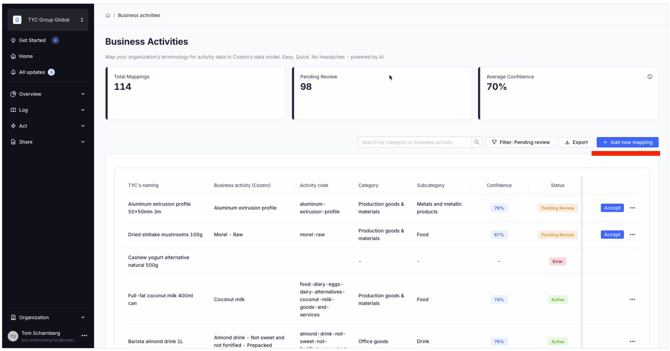
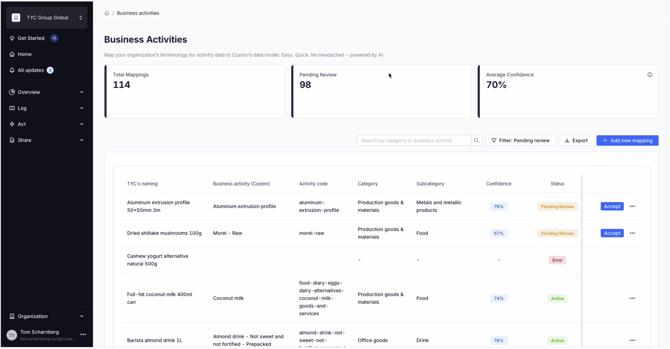
Navigate to **Log → Business Activities** in the main navigation menu. This is where your full mapping library lives, along with key summary indicators at the top of the page:
- **Total Mappings** — the total number of activities you have mapped so far
- **Pending Review** — the number of mappings that still need your confirmation
- **Average Confidence** — the average confidence score across all your mappings
#### **Video Walkthrough:**
#### **Step-by-step guide**
### Step 1 : Upload your activity list
1. On the Business Activities page, click **"Add new Mapping"** to open the upload window.
2. Upload an **Excel (.xlsx) or CSV file** containing your organisation's activity names. This could be a purchase list, an internal category export, or any file that contains the names you use for your activities.
### 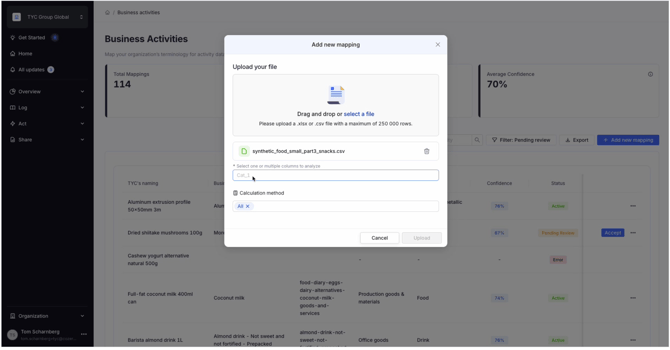
3. Once the file is uploaded, **select the column** that contains the activity names you want to map.
4. Optionally, choose which **calculation methods** you want the AI to consider when searching for matches.
### 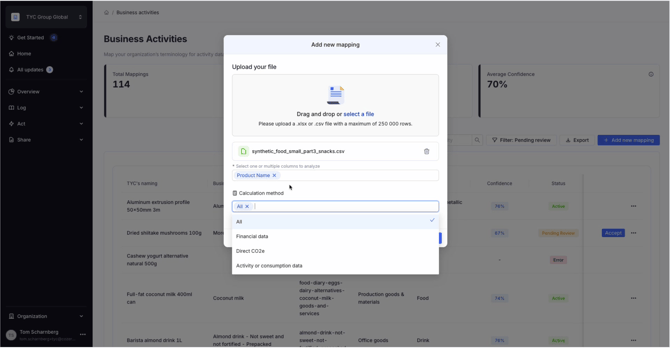
You can choose from:
- All (default - recommended if you are unsure)
- Financial data
- Direct CO2e
- Activity / consumption data
5. Click **"Upload"** to start the AI matching process.
### Step 2 : Wait for the AI to process your mappings
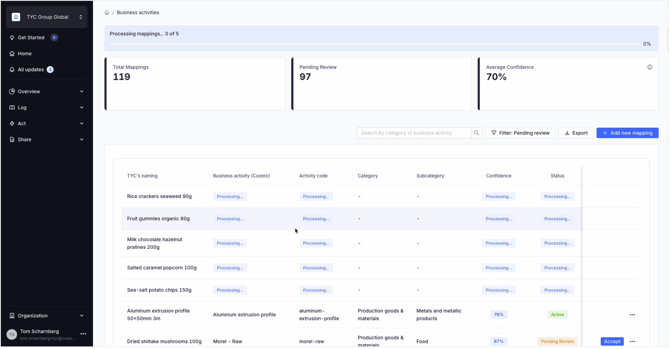
After uploading, the system processes your activities in the background. While this is happening:
- Each row in the table will show a **"Processing"** status with an animated indicator
- The table **refreshes automatically** every 3 seconds so you can see results as they come in — no need to reload the page
- The key indicators at the top update as mappings are completed
You do not need to stay on the page. You can come back once processing is complete.
### .
### 
### Step 3 : Review the AI recommendations
Once processing is complete, each activity in your list will show the AI's best match along with a **colour-coded confidence score**. Here is what each confidence level means and what action is required from you:
| Confidence level | What it means | What you need to do |
| --- | --- | --- |
| **95% and above** | The AI is highly confident in the match | Nothing - the mapping is automatically set to **Active** |
| **Below 95%** | The AI has a strong suggestion but wants your confirmation | The best match is pre-selected - click **"Accept Match"** to confirm |
> **Note:** Mappings that require your review will appear in the **"Pending Review"** counter at the top of the page. Work through these to complete your mapping library.
### 
### Step 4 : Search the full business activity database (optional)
If you want to manually find a different match for any activity — or if you are not satisfied with the AI's recommendation — you can search Cozero's complete business activity database directly.
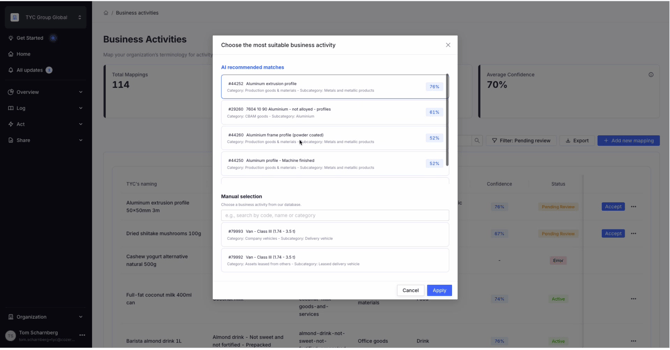
1. Find the activity row you want to change and click the **ellipsis menu (⋯)** at the end of the row.
2. Click **"Edit mapping"** to open the search window.
3. The AI's recommended matches appear at the top of the list, sorted by confidence.
4. Use the **search bar** to search by description, code, or category across the full Cozero database.
5. Click on the match you want to select it.
6. Click **"Apply"** to save your choice, or **"Cancel"** to go back without making changes.
### 
### Step 5 : Manage your mapping library
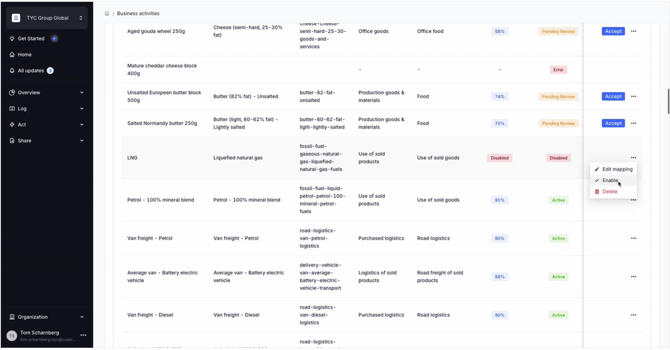
All accepted mappings are stored in your library and can be managed at any time. Each row shows:
- The activity name from your original file
- The matched Cozero activity name, category, subcategory, and activity code
- The confidence score
- The current status: **Active**, **Pending Review**, or **Disabled**
To manage any mapping, click the **ellipsis menu (⋯)** on that row. You can:
- **Edit** - change the matched activity by opening the database search
- **Disable** - temporarily switch a mapping off without deleting it
- **Enable** - reactivate a mapping that was previously disabled
- **Delete** - permanently remove a mapping from your library
Your mapping library is always available as a reference, and you can add to it or update it at any time - not just during onboarding.
### 
### Step 6 : Use your mappings when entering data manually
Once you have set up your mapping library, you can use your own activity names when creating log entries manually in Cozero — instead of having to search for Cozero's terminology.
Here is how:
1. Start a manual log entry as usual.
2. After selecting the **business activity** and **calculation method**, a checkbox will appear if Cozero has stored mappings for that combination.
3. **Tick the checkbox** - the dropdown will now include your own activity names from your mapping library.
4. Select your own term. Cozero will use the underlying mapped activity for the calculation.
### Step 7 : Use your mappings in bulk data imports
If you upload data in bulk using Cozero's import template, your mappings are also available to help.
1. Download the import template and open it in Excel or Google Sheets.
2. Navigate to the **"Business Activities"** tab within the template — this sheet contains your existing mappings.
3. Use a formula such as **VLOOKUP** to reference your own activity terms and have them automatically replaced with the correct Cozero business activity names.
This means you can prepare your import files using your own terminology without having to manually translate every item.
#### **Understanding confidence scores**
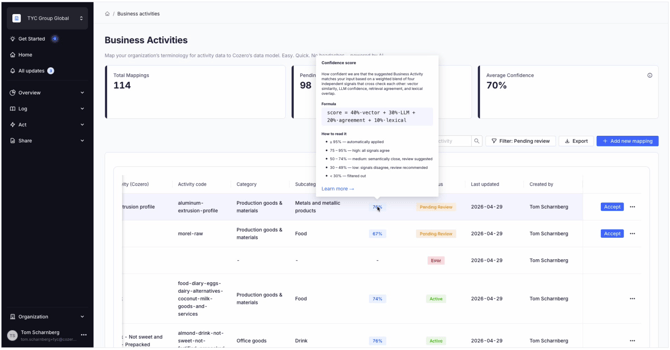
Every AI-recommended match comes with a confidence score between 0% and 100%. This score reflects how closely your activity name matches a business activity in Cozero's database, based on multiple independent checks — not just a single AI judgement. This makes the score reliable and transparent, which is particularly important for audit purposes.
A score of **100%** means your activity name is an exact match of a Cozero business activity name.
**As a general guide:**
- **95% and above** -\> automatically accepted, no review needed
- **75% – 94%** -\> high confidence; review is good practice but the match is likely correct
- **50% – 74%** -\> moderate confidence; the AI sees a connection but review is recommended
- **30% – 49%** -\> lower confidence; the AI found a candidate but the signals are mixed; review is recommended
- **Below 30%** -\> filtered out and not shown
### 
#### **Frequently asked questions**
**Can I upload multiple files?** Yes. You can upload multiple files and add to your library over time. Note that if you upload a new file while a previous one is still processing, the progress indicator will only reflect the most recent upload.
**What file types are supported?** Excel (.xlsx) and CSV files are supported.
**What happens if the AI cannot find a good match?** Matches below a 30% confidence score are filtered out and not shown. If no good match is found for an activity, you can use the database search (Step 4) to find the right match manually.
**Are my mappings permanent?** Mappings are stored persistently in your library and remain there until you delete them. You can disable them temporarily at any time and re-enable them later.
**Can I change a mapping after it has been accepted?** Yes. You can edit any mapping at any time using the ellipsis menu, regardless of its current status.
**Does my feedback improve the AI?** Yes. Any manual corrections you make are recorded and will be used in the future to improve the AI's matching quality over time.
### Questions or Feedback?
If you run into any issues during your import or have questions about the process, contact us at **[support@cozero.io](mailto:support@cozero.io)**. We are here to help make your data submission as smooth as possible
- [Cozero emission categories](https://resources.cozero.io/wiki/cozero-emission-categories?hsLang=en)
- [Product guide: Log](https://resources.cozero.io/wiki/product-guide-log?hsLang=en#main-content)
- [Introduction](https://resources.cozero.io/wiki/product-guide-log?hsLang=en#introduction)
- [Setting up your organization](https://resources.cozero.io/wiki/product-guide-log?hsLang=en#setting-up-your-organization)
- [How Tos](https://resources.cozero.io/wiki/product-guide-log?hsLang=en#how-tos)
- [Corporate Carbon Footprint (CCF)](https://resources.cozero.io/wiki/product-guide-log?hsLang=en#corporate-carbon-footprint-ccf)
- [Product Carbon Footprint (PCF)](https://resources.cozero.io/wiki/product-guide-log?hsLang=en#product-carbon-footprint-pcf)
- [Product guide: Dashboard](https://resources.cozero.io/wiki/product-guide-log?hsLang=en#product-guide-dashboard)
- [Cozero features](https://resources.cozero.io/wiki/product-guide-log?hsLang=en#cozero-features)
- [Product guide: Act](https://resources.cozero.io/wiki/product-guide-act?hsLang=en)
- [Product guide: Share](https://resources.cozero.io/wiki/product-guide-share?hsLang=en)
- [Product guide for Suppliers](https://resources.cozero.io/wiki/product-guide-for-suppliers?hsLang=en)
- [Knowledge base](https://resources.cozero.io/wiki/knowledge-base?hsLang=en#main-content)
- [Climate knowledge](https://resources.cozero.io/wiki/knowledge-base?hsLang=en#climate-knowledge)
- [FAQs and glossaries](https://resources.cozero.io/wiki/knowledge-base?hsLang=en#faqs-and-glossaries)
- [Regulations](https://resources.cozero.io/wiki/knowledge-base?hsLang=en#regulations)
[](https://www.cozero.io/)
Copyright © 2025, Cozero GmbH