
In this guide, we’ll walk you through the process of importing your activity data using Cozero’s updated Bulk Import feature. This new flow allows for the easy upload of multiple logs from various Cozero categories, minimizing errors with built-in validation rules.
We released a new version of the Bulk Import template in December 2024. The new template comes with improved features and better functionality, designed to make your data import experience smoother.
Step by step tutorial
Step 1: Download the template
-
Log into Cozero: Start by logging into your Cozero account and navigate to the Bulk Import feature in your dashboard.
-
Select categories: Choose the category or categories you want to log data for (e.g., "Office Goods," "Logistics"). You can select up to eight categories at once in a single file.
-
Request template: Click the option to request the Bulk Import template. Cozero will send the file to your registered email address within a few minutes.
-
Download the file: Open your email and click on the link to download the template. Save the file to your computer.
-
Open in Excel: Open the downloaded file in Microsoft Excel or a similar spreadsheet software. Google Sheets is not supported.

Tip: You can zoom-in on your browser, to see the animated pictures better.
Step 2: Fill in the template on Microsoft Excel, or a similar spreadsheet software
-
Locate the data input sheet: Open the Data Input Sheet, where you’ll add your activity data.
-
Use the data guide: The Data Guide sheet contains instructions, examples, and a reference for required fields. Use it to find the correct match for your activity data.
-
Enter required data: Enter your data in the relevant columns. For example:
-
Location (Column B): Select the location for the log entry.
-
Start and End Dates (Columns C & D): Enter the start and end dates for your activity.
-
Data Type and Values (Columns J, M, P, S, V): Fill in all the required data fields marked with an asterisk (*).
-
- Use filters for easy data entry: Use Excel’s filtering option on the Data Guide to quickly find the relevant row for your activity. For example, if you’re logging office furniture, filter to find the correct item (e.g., wooden chairs).
In some versions of Excel, you cannot filter using the shortcut button. If this is your case, the steps are:
-> Go to the Data guide sheet
-> Right-click in a column title. For example, the cell K6 (Business Activity).
-> Click on Filter > Filter by Cell's value
->You will then be able to filter the Data Guide sheet.
5. Add optional fields: Fill in additional columns as needed, such as:
-
-
Log Description (Column E): Add a custom description for the log.
-
Log Entry Title (Column F): Customize the title that will appear for this entry.
-
Tags (Column AC): Add relevant tags for categorization (from the Organization Data sheet).
-
Note that the maximum volume of data per bulk import file is 10,000 rows.

Step 3: Upload the template
-
Save the file: After entering all your data, save the file.
-
Upload to Cozero: Go to the Bulk Import page in Cozero and upload your completed template. The upload may take a few moments depending on the file size.

What Happens After Upload?
Once your file is uploaded, the Cozero team reviews it internally. The uploaded file can take the following routes:
1. If the file is correct
-
Your data will be ingested within 24 hours
-
You will receive the same system-generated confirmation email once the ingestion and calculation steps are completed.
-
Status becomes 🟢 100% Completed
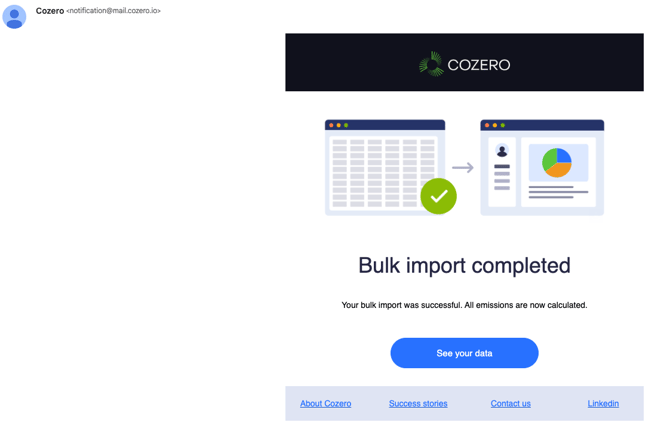
2. If minor issues are found (we fix them for you)
Examples of minor issues we resolve directly:
-
Excel formatting inconsistencies
-
Slight spelling variations in Business Activity names
-
Minor location naming mismatches
-
Formatting inconsistencies in numeric fields
In this case:
-
We correct the file internally
-
We ingest the data
-
You receive the standard ingestion confirmation email (same as case 1)
-
Status becomes 🟢 100% Completed
No action required from your side.
3. If major issues are found (your input required)
Examples of issues requiring your input:
-
Missing required inputs
-
Business Activities not existing in your setup
-
Location names not matching any configured location
-
Missing reporting periods
-
Entirely unmappable or incomplete datasets
In this case:
-
You will receive an email from support@cozero.io
-
The email will clearly describe what needs to be corrected
-
You can:
-
Reply with the corrected data via email, or
-
Re-upload a corrected version of the original file
-
The file will remain 🔵 In Progress until resolved.
4. When Cozero Uploads a Corrected File for You
In some cases (for example, when multiple corrections are required), our support team may:
-
Upload a corrected version of your file directly into the platform
-
Complete the emissions calculation
-
Notify you via support@cozero.io once everything is finalized
After reviewing the results, you may delete the earlier “In Progress” version to keep your data clean and consistent.
Communication & Notifications
You will receive:
-
✅ A system-generated confirmation email when ingestion is completed
-
📩 A direct email from support@cozero.io if action is required
-
📩 A confirmation email from support@cozero.io if we upload a corrected version on your behalf
If you are working towards critical reporting deadlines, please notify us in advance so we can prioritise your ingestion.
Best Practice for Faster Processing
To ensure smooth ingestion:
-
Use the latest template: Make sure you are utilizing the most recent version of the Bulk Import template by downloading it again and transferring your data into it.
-
Double-check organization specific data: Location, suppliers, tags, customers names are always matching (spelling, case, spaces etc) exactly with the names active and existing in Cozero for your organization.
- Copy-paste from the Data Guide: Always copy Calcultion method and Business Activity directly from the Data Guide sheet to avoid mismatches.
-
Make sure all fields marked with red asterisk* in the template are never missing
-
Never modify column headers in the template
-
Check date formatting: Dates must follow the M/D/YY format (e.g., 3/15/25). Incorrect formats will cause validation errors and will require cozero team to fix the format on your behalf, delaying calcualtion.
-
Select the correct unit: Ensure that the chosen unit matches the expected format for the data type (e.g., kg, kWh, liters).
-
Avoid incomplete rows: Each log entry must be fully completed. Do not leave rows partially filled with just a few initial columns populated.
The cleaner the file, the faster the ingestion.
If you have any questions about your upload or have any feedback about the process, contact: