---
title: Custom data transformation pipelines
description: "Turn a raw supplier or system export into a ready-to-import Cozero file every period: what custom data transformation pipelines do, what you need to set one up, and how to run it."
---
[Skip to content](https://resources.cozero.io/wiki/custom-data-transformation-pipelines#main-content)
- [English](https://resources.cozero.io/wiki/custom-data-transformation-pipelines)
- [Deutsch](https://resources.cozero.io/de/wiki/individuelle-datentransformations-pipelines)
English
Show submenu for translations

Open main navigation
Close main navigation
- - [English](https://resources.cozero.io/wiki/custom-data-transformation-pipelines)
- [Deutsch](https://resources.cozero.io/de/wiki/individuelle-datentransformations-pipelines)
English
Show submenu for translations
- [Contact us](mailto:support@cozero.io)
[Contact us](mailto:support@cozero.io)
How can we help?
- There are no suggestions because the search field is empty.
1. [Cozero Wiki](https://resources.cozero.io/wiki?hsLang=en)
2. [Product guide: Log](https://resources.cozero.io/wiki/product-guide-log?hsLang=en)
3. [Cozero features](https://resources.cozero.io/wiki/product-guide-log?hsLang=en#cozero-features)
October 7, 2026
# Custom data transformation pipelines
## From raw supplier export to ready-to-import data: upload the file exactly as you receive it, every period, and get a checked bulk import out the other side.
### What are custom data transformation pipelines?
Most of the data you report doesn't arrive in the shape Cozero needs. A fuel card statement, an energy export or a waste log comes in whatever layout the supplier or source system produces. Until now, someone on your team had to reshape that file by hand before every import: delete lines, rename columns, convert units and codes, add up values. Then they did the same work again the next period.
A custom data transformation pipeline removes that step. Cozero builds a transformation for one specific file of yours, once. From then on you upload the raw export exactly as you receive it, and a ready-to-import file comes out the other side. It continues straight into the bulk import you already know. Each run is fully traceable, from the supplier file to the figure in your footprint.
### Who is this for?
Organisations that report the same kind of file again and again, in a layout Cozero can't import directly. For example:
- **Recurring supplier statements**: fuel cards, utility bills, energy or water exports, waste logs.
- **System exports**: data pulled from an ERP, fleet or facility system in its own column layout.
- **Teams that prepare the same file by hand every month or quarter** and want that work done the same way every time.
- **Organisations that need an audit trail**: every intermediate step of a run can be downloaded.
### The use case at a glance: a monthly fleet fuel card statement
Here is how this looks for one of the first pipelines in use.
**Before:** every month the company receives a fuel card statement for its passenger car fleet. Before the data could go into Cozero, someone had to:
- remove everything that isn't fuel or charging: card fees, car washes, ferry tickets, parking
- translate each cost centre code into the matching site in Cozero
- match each fuel product to its business activity
- net out credits and corrections
- add the values up per site and fuel type, for the right reporting month.
**After:** the statement is uploaded as it arrives. The pipeline does all of the above in the same way every time. It also reads the reporting month from the statement itself, so two months can't be booked as one by accident. The output is the company vehicle data for the corporate carbon footprint, ready for bulk import.
A manual exercise repeated every period becomes a single upload.
### What you need to get started
Cozero sets up every pipeline for you. To build one, Cozero needs the following from you:
| What | Why |
| --- | --- |
| **Representative sample files** of the export you want automated, as you receive them (Excel or CSV) | The pipeline is built around the exact structure of this file |
| **The target output**: what the data should become in Cozero (for example, Corporate Carbon Footprint data for a given category) | Defines the columns and values the pipeline must produce |
| **Your business logic**: which lines count and which don't, how codes translate (for example, cost centre to site, product to business activity), how values are totalled | Makes the pipeline specific to your data |
| **Known edge cases**: credits, corrections, unusual lines | Lets the pipeline handle them, or flag them for review |
| **Your locations and business activities set up in Cozero** | The output is matched against the mappings already in your account |
**How the setup works**
1. You tell Cozero which file you'd like automated: through your Customer Success contact, at support@cozero.io, or with the **I am interested** button on the Data transformations page (see the FAQ).
2. Cozero scopes the file with you and builds the pipeline from your sample files.
3. Cozero runs a test, reviews the result with you, then publishes the pipeline to your account.
4. From then on, your team runs it whenever new data arrives.
### How to access it
Go to **Log › Data transformations**. Every pipeline published for your organisation is listed under **Available pipelines**, with an **Upload file** button and a **View** button for its details.
If the tab isn't visible, data transformation pipelines aren't enabled for your organisation yet. Contact support@cozero.io.
### Video walkthrough
### Step-by-step guide
#### Step 1: Open Data transformations
1. In the main navigation, open **Log** (expand it if it's collapsed) and select **Data transformations**.
2. Under **Available pipelines** you'll see every pipeline published for your organisation. Each card shows the pipeline name, the date it was created and a short description, with **Upload file** and **View** buttons.
3. If you have no pipelines yet, the list is empty. Use **I am interested** at the top right to tell Cozero which file you'd like automated.

#### Step 2: Open a pipeline and check what it does
1. Click **View** on the pipeline you want to run. The page can take a few seconds to load.
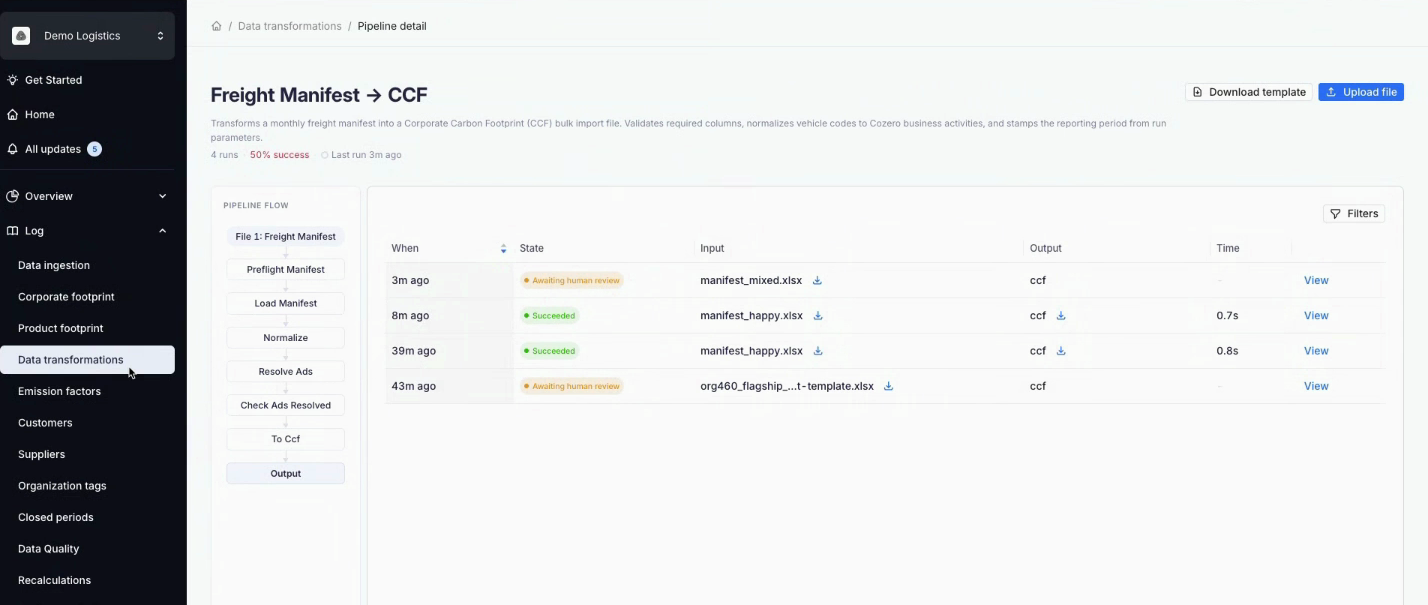
2. At the top, the description explains what the pipeline does. It was written while your pipeline was set up, so it refers to your own data. Below it you see the number of runs, the success rate and when the pipeline last ran.
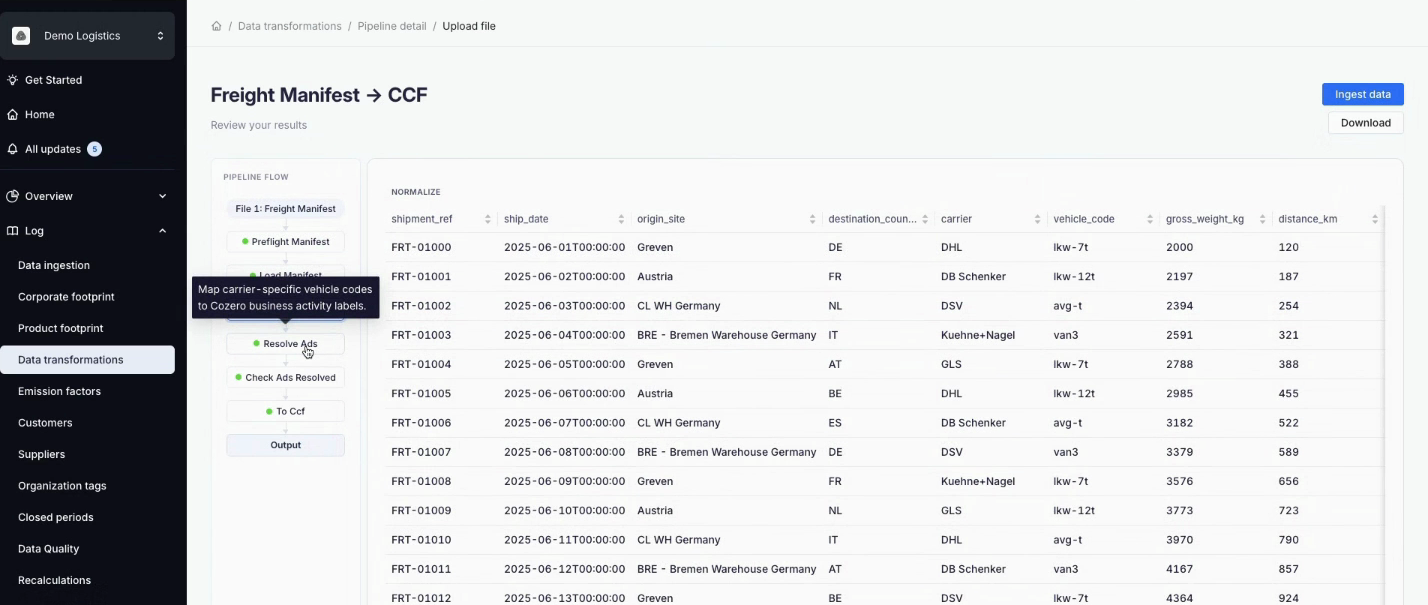
3. **Pipeline flow** on the left lists every step the pipeline takes, in order, from the input file to the output. Hover over a step to see what it does.
4. Your past runs are listed next to the flow, with the columns **When**, **State**, **Input**, **Output** and **Time**. Click **View** on a run to open it, and use **Filters** to narrow the list.

#### Step 3: Go to the upload page
1. Click **Upload file** (on the list or on the pipeline page).
2. Under **Required input files**, the page lists each file the pipeline expects, with a short description and the expected columns (for example, "4 expected columns: …").
3. Click **Download template** to get a template of the mandatory columns, as a reminder of what your file must contain. The same button is on the pipeline page.
4. The upload page has its own web address. Share it with whoever holds the data, for example the colleague who receives the supplier statement.
5. When the page is opened from a shared link, the file details can take a few seconds to appear.

#### Step 4: Upload your raw export and start the run
1. Click **Upload file** next to the required file and attach the raw export exactly as you received it. Excel and CSV files are accepted.
2. Once every required file is attached, **Continue** becomes active. Click it to start the run.
3. The run happens in the background, so you can leave the page. You get an email when it's finished.
#### Step 5: Review the result
1. Open the run from the email, or click **View** next to it in the run list on the pipeline page.
2. Click through the steps in **Pipeline flow** to see your data at each step. You can follow it as it is gradually reshaped.
3. Click **Download** to save the file at the step you're looking at: your original input, any intermediate file or the final output.
#### Step 6: Continue into bulk import
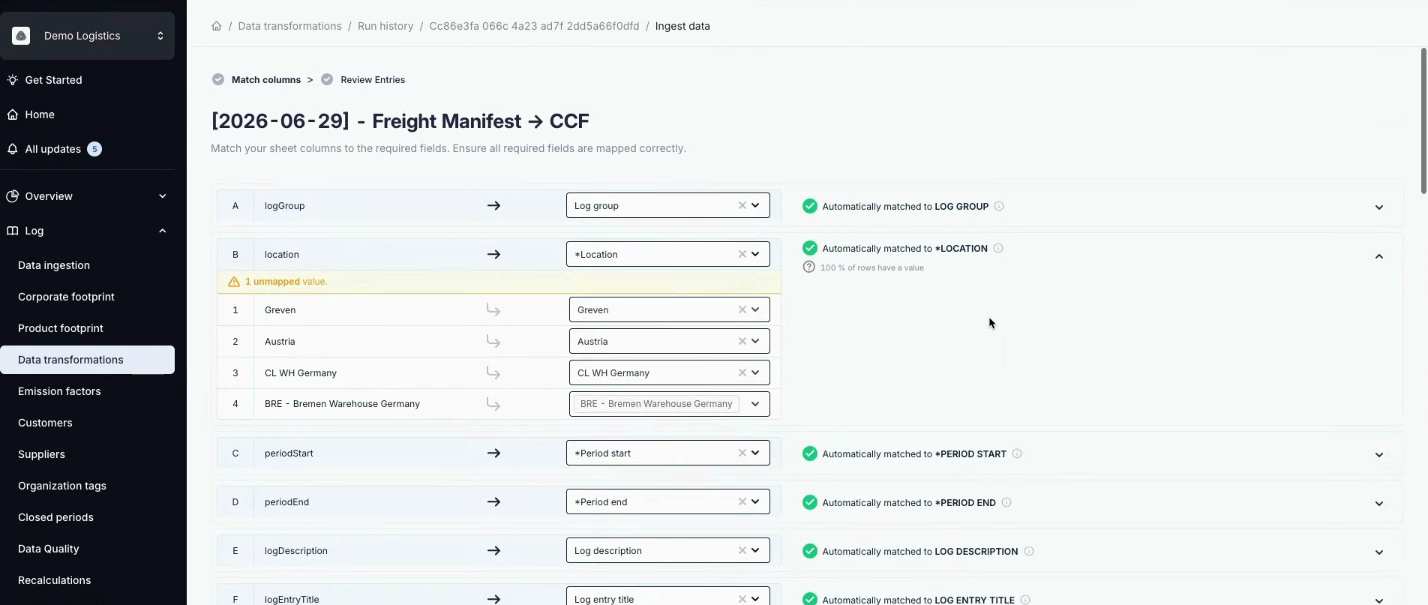
1. From a successful run, click **Ingest data** (top right).
2. You continue into the bulk import you already know, already named with the date and the pipeline name. In **Match columns**, the transformed file's columns are matched to Cozero's fields automatically, and values such as business activities are matched against the mappings already in your account. Any value that couldn't be matched is flagged so you can map it.
3. In **Review entries**, check the rows. Correct anything wrong in an individual cell here, before the data is ingested.
4. Submit the import.
#### Step 7: Find the import in Data ingestion
1. Once ingested, the import appears in **Data ingestion** alongside every other bulk import.
2. It is named after the pipeline and dated, so you can find it again months later.
#### When a run finds problems
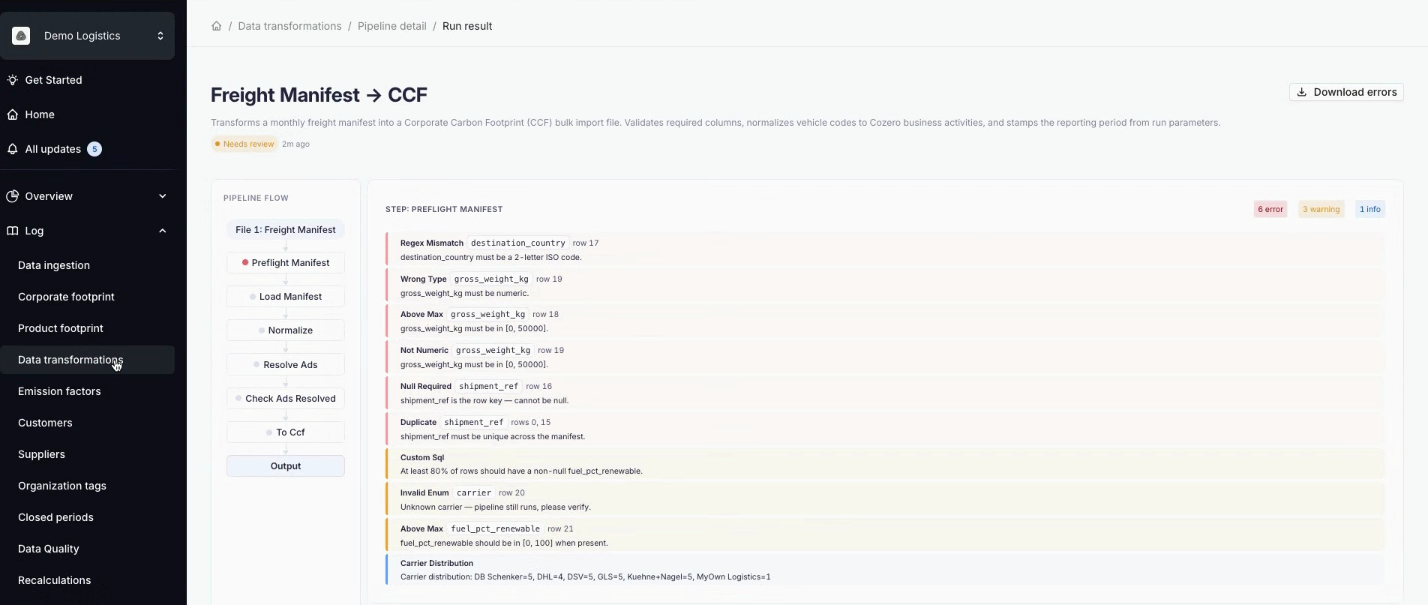
1. A file can pass the column check and still contain data the pipeline can't use. The run then finishes with the rows it managed and offers the problems as a file. The step where the problem occurred is marked in **Pipeline flow**.
2. The run result lists the messages for that step, counted as errors, warnings and info. Click **Download errors** to save them as a file. Each message names the rule that failed and the row it failed on.
3. Correct the file offline, then click **Upload again** to start a new run.
4. Cozero is notified as well, so the support team can step in without you having to ask.
### Understanding where the pipeline stops and you take over
The pipeline handles the **structural** work: merging sheets or files, removing lines that aren't consumption, renaming columns, converting units and supplier codes, and totalling values. It does the same thing to the file every time.
It doesn't correct **content**. Anything wrong in an individual cell is fixed by you in bulk import, before the data is ingested. That split is what makes a pipeline dependable: the repetitive work is automated, and judgement stays with your team, who know the data best.
**Run statuses you may see**
| Status | What it means |
| --- | --- |
| Succeeded | The output is ready. Continue into bulk import. |
| Failed | The run couldn't finish, for example because a mandatory column is missing. Check the file against the template and upload it again. |
| Awaiting human review | The run needs a decision, for example about a value it couldn't match, or problems were found in the file. It isn't lost: it stays in your run list and can be picked up later. Cozero is notified. |
### Why it pays off over time
- **No repeated manual preparation.** The reshaping is defined once and applied to every new file.
- **Consistent results.** The same rules run every period, regardless of who uploads the file.
- **A full audit trail.** Input, every intermediate file and the final output can be downloaded for every run. That's the full path from the supplier file to the figure in your footprint, which is what an auditor asks to see.
- **Easy to hand over.** Each pipeline's upload page has its own address, so the person who receives the data can upload it directly.
- **Fewer surprises.** The reporting period is read from the file itself, errors name the exact rule and row, and Cozero is alerted when a run fails.
- **Ready for next month.** Once a pipeline is published, it's there to run again whenever new data arrives.
### Current limitations
- **Pipelines are set up by Cozero.** You can't create, edit or schedule a pipeline yourself; each new file you want automated starts with a request to Cozero.
- **Every run starts with an upload.** There's no automatic collection from a system or a mailbox.
- **No partial ingestion.** A run's output is imported as a whole.
- **One pipeline, one file structure.** A pipeline is built for a specific file layout. If the supplier changes the structure, the pipeline needs to be adjusted.
### Frequently asked questions
**Which file formats can I upload?** Excel (.xlsx) and CSV.
**Who receives the email when a run is finished?** The user email who started the run.
**What happens if my file is missing a mandatory column?** The run is blocked before processing. Check the file against **Download template** on the upload page, then upload it again.
**What if my file has extra columns?** Extra columns are ignored. Only missing mandatory columns block a run.
**My supplier changed the layout of their export. What do I do?** Contact support@cozero.io with an example of the new file. A pipeline is built for one file structure, so Cozero adjusts it for you.
**Can I fix a single wrong value without re-running the pipeline?** Yes. Correct it in bulk import, before you submit the data.
**I walked away from a run that needed review. Is it lost?** No. A run awaiting human review stays in your run list and can be picked up later.
**How large can my file be?** We recommend up to 10,000 rows per file. Larger files can take noticeably longer to process.
**Can I automate another file?** Yes. On the **Data transformations** page, click **I am interested**, describe the data source you'd like to bring in and how you prepare it today, then click **Send**. You can also contact your Customer Success contact or support@cozero.io. Cozero reviews your use case and gets in touch to scope the pipeline with you.

**Where do I find the template for my file?** Use **Download template** on the pipeline page or on the upload page. It shows the mandatory columns.
**Why is Continue greyed out on the upload page?** Every required input file must be attached first. Once all are uploaded, **Continue** becomes active.
**I can't see Data transformations under Log.** Data transformation pipelines aren't enabled for your organisation yet. Contact support@cozero.io.
### Questions or Feedback
Contact us at support@cozero.io
- [Cozero emission categories](https://resources.cozero.io/wiki/cozero-emission-categories?hsLang=en)
- [Product guide: Log](https://resources.cozero.io/wiki/product-guide-log?hsLang=en#main-content)
- [Introduction](https://resources.cozero.io/wiki/product-guide-log?hsLang=en#introduction)
- [Setting up your organization](https://resources.cozero.io/wiki/product-guide-log?hsLang=en#setting-up-your-organization)
- [How Tos](https://resources.cozero.io/wiki/product-guide-log?hsLang=en#how-tos)
- [Corporate Carbon Footprint (CCF)](https://resources.cozero.io/wiki/product-guide-log?hsLang=en#corporate-carbon-footprint-ccf)
- [Product Carbon Footprint (PCF)](https://resources.cozero.io/wiki/product-guide-log?hsLang=en#product-carbon-footprint-pcf)
- [Product guide: Dashboard](https://resources.cozero.io/wiki/product-guide-log?hsLang=en#product-guide-dashboard)
- [Cozero features](https://resources.cozero.io/wiki/product-guide-log?hsLang=en#cozero-features)
- [Product guide: Act](https://resources.cozero.io/wiki/product-guide-act?hsLang=en)
- [Product guide: Share](https://resources.cozero.io/wiki/product-guide-share?hsLang=en)
- [Product guide for Suppliers](https://resources.cozero.io/wiki/product-guide-for-suppliers?hsLang=en)
- [Knowledge base](https://resources.cozero.io/wiki/knowledge-base?hsLang=en#main-content)
- [Climate knowledge](https://resources.cozero.io/wiki/knowledge-base?hsLang=en#climate-knowledge)
- [FAQs and glossaries](https://resources.cozero.io/wiki/knowledge-base?hsLang=en#faqs-and-glossaries)
- [Regulations](https://resources.cozero.io/wiki/knowledge-base?hsLang=en#regulations)
[](https://www.cozero.io/)
Copyright © 2025, Cozero GmbH