
What is Audit Log?
Audit Log is a page under Organization that shows who changed what across your organisation's carbon data, and what each change did to your footprint. It covers log entries that were created, edited or deleted, whether through the interface or a bulk import, as well as system recalculations. Every change is annotated with its emissions impact in tCO₂e.
Until now, change history lived only inside individual log entries and showed the raw field change (for example 456 → 5677) without showing the consequence (+315.39 tCO₂e). Footprint changes had to be reconstructed by hand, and audit change reports had to be regenerated manually every time a reporting period reopened. Audit Log gives you one filterable feed that you can export to CSV or XLSX yourself.
Who is this for?
Audit Log is available to Corporate Carbon Footprint (CCF) customers on the v2 Calculation Engine. The emissions figures and the split between recalculations and edits both depend on it. It is built for:
- Sustainability and ESG managers who own the carbon data and want to review what contributors have changed
- Auditors who need an exportable change record for assurance
It is especially useful for organisations with a decentralised reporting process, where many contributors enter data and one sustainability manager is accountable for the result. For these teams it works as a daily review screen, not just an occasional audit tool.
Before you start
- Audit Log requires the v2 Calculation Engine and is enabled per organisation by Cozero. It is not a self-serve setting. If you don't see Audit Log under Organization in the sidebar, contact your Cozero contact to check eligibility.
- History starts on 1 January 2026, and the page shows changes from the last 365 days.
- If nobody has changed any data in your organisation since then, the feed shows No data yet. It fills up as soon as someone creates, edits or deletes data.
Step-by-step guide
1. Open the Audit Log
In the left sidebar, expand Organization and click Audit Log. You'll see a single feed of changes, newest first. The feed covers the business unit selected in the switcher at the top left of the sidebar, including the business units below it.
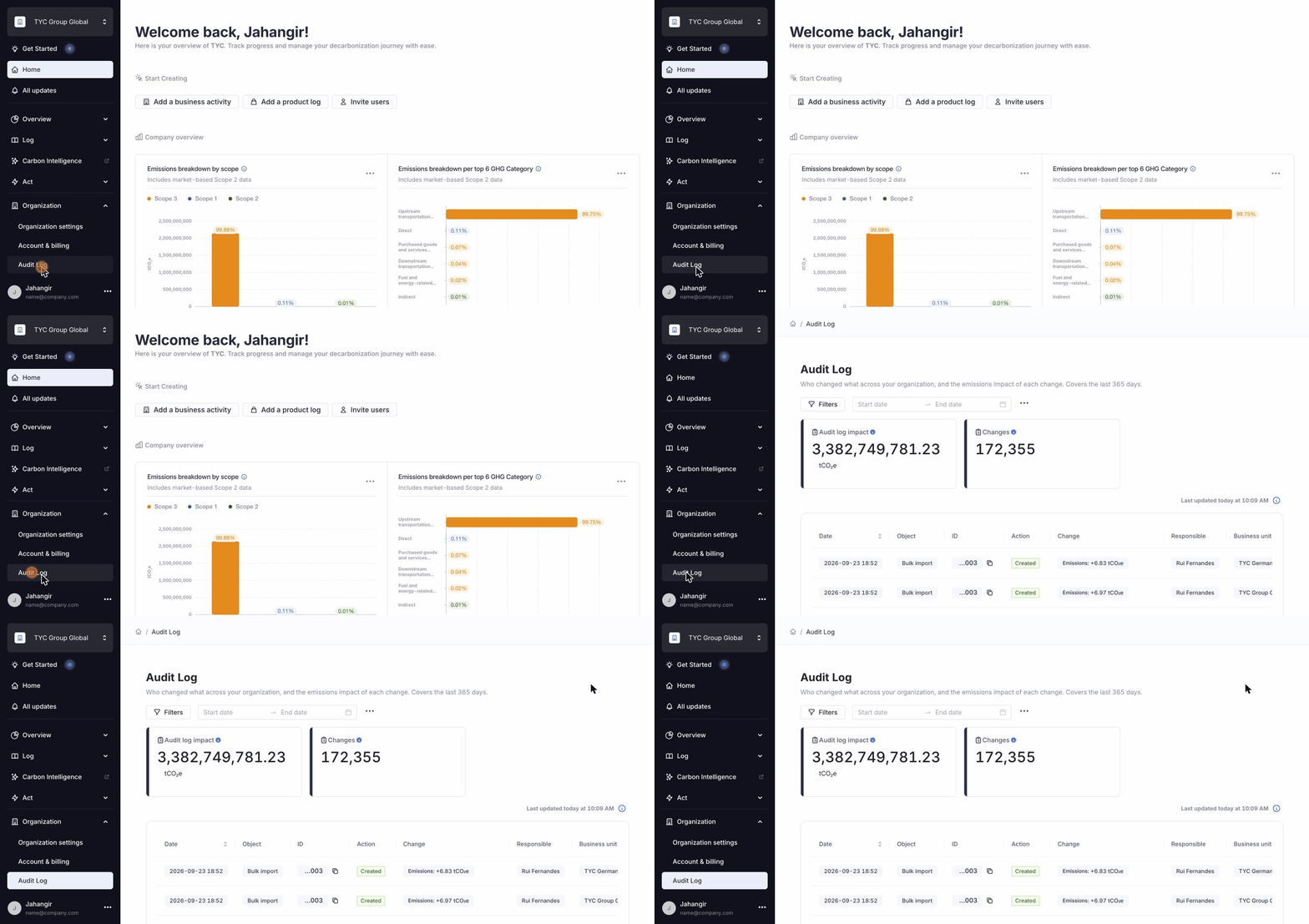
Opening Audit Log from the Organization menu.
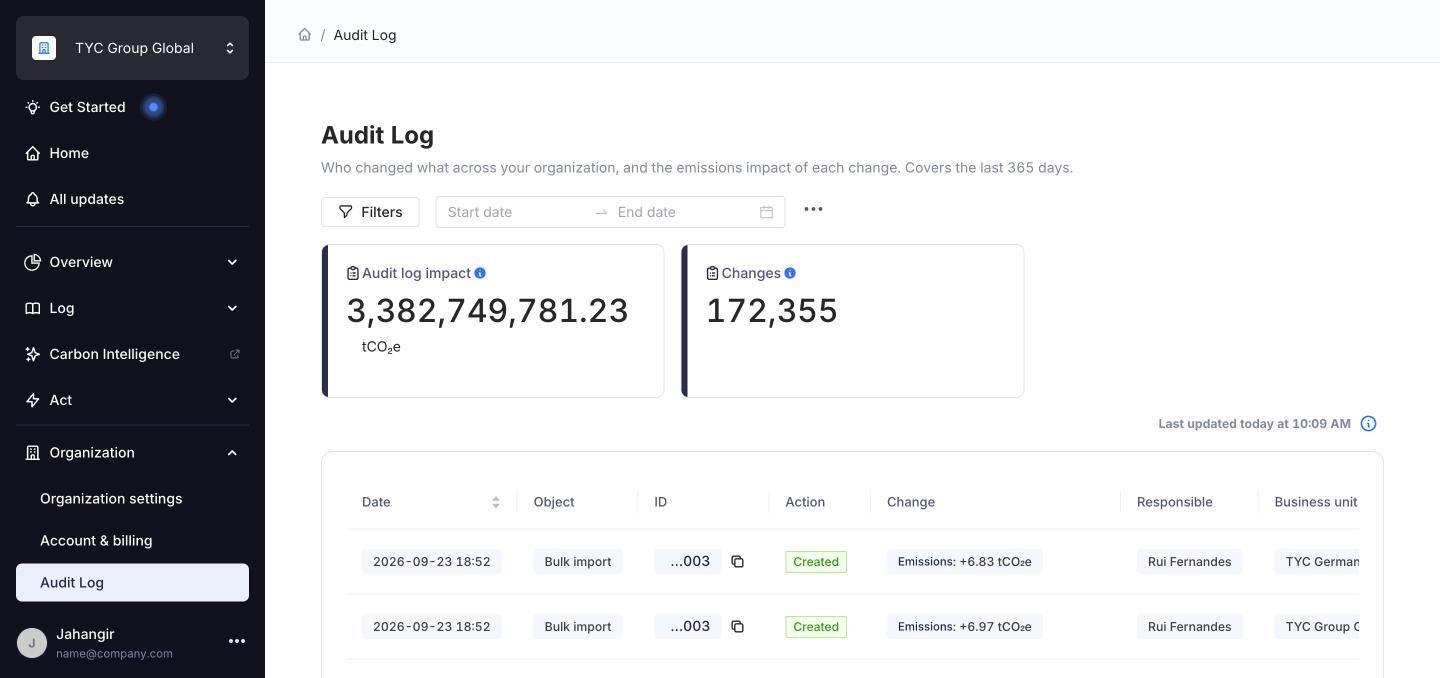
The Audit Log page: Filters, date range picker, export menu (•••), summary cards and the change feed.
2. Check the summary cards
Two cards at the top summarise whatever you are currently looking at:
- Audit log impact: the net emissions impact in tCO₂e of all changes that match your current filters. This figure is hidden when you filter by Change type, because an emissions change is recorded as its own event, separate from the field edit that caused it.
- Changes: the total number of changes that match your current filters.
Hover over the i icon next to each card title for a short explanation.
3. Read a row
Each row is one change. The columns are:
- Date: when the change happened. This is the only sortable column. Click the header to switch between newest first and oldest first.
- Object: what was changed: Log entry, Log or Bulk import.
- ID: the object's ID, shortened to its last three digits (for example ...552). Click the copy icon next to it to copy the full ID.
- Action: Created, Edited, Deleted or Recalculation.
- Change: either the field that changed or the emissions impact, never both on the same row.
- A field change shows the old and new value, for example Start date: ∅ → 2026-01-01. The ∅ symbol means the field was empty before.
- An emissions change shows the signed delta, for example Emissions: +6.83 tCO₂e.
- Responsible: the user who made the change. System recalculations have no user.
- Business unit and Location of the changed data.
- Bulk import: the name of the bulk import the change came from. It shows -- for changes made directly in the interface, and Deleted bulk import if the import has since been deleted.
Deleted items are shown greyed out. The table shows 25 rows per page by default. Use the page numbers below the table to move through older changes. Scroll the table sideways to see the Location and Bulk import columns on smaller screens.
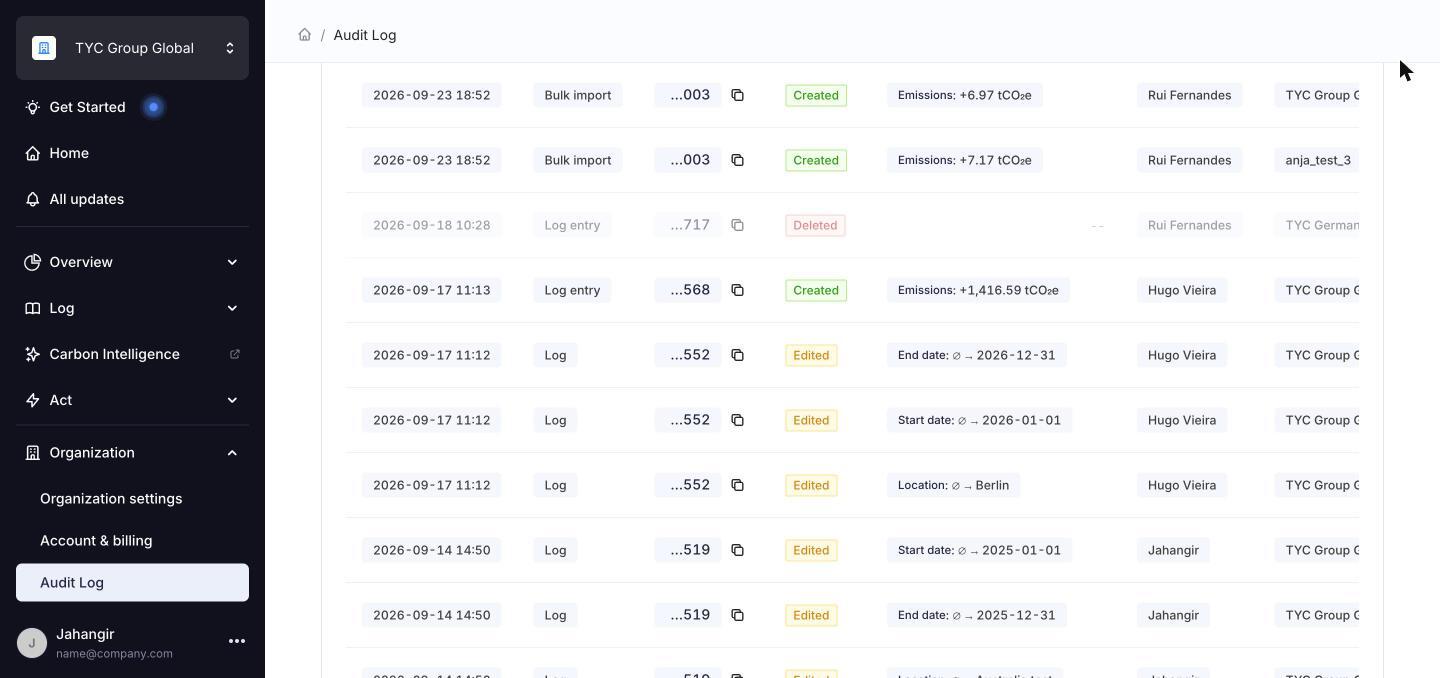
Emissions rows (Created), a greyed-out deletion, and field changes (Edited) with old and new values.
Open the underlying data: click any row to jump to it. A log or log entry row opens that log in Corporate footprint. A bulk import row opens Corporate footprint filtered to that import.
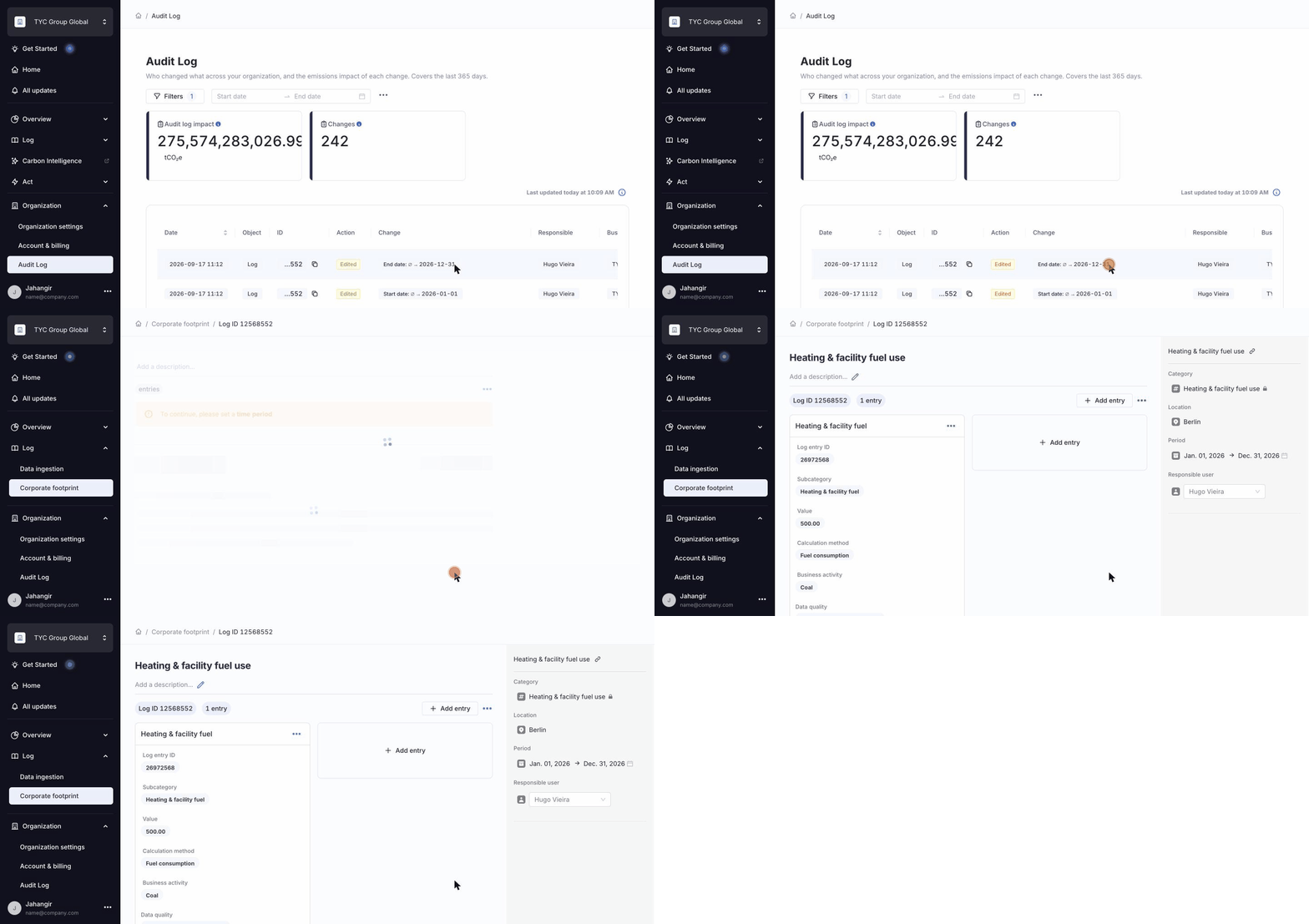
Clicking a row opens the related log.
4. Understand the emissions impact
The emissions figure is a signed net delta in tCO₂e, for example Emissions: +315.39 tCO₂e. It shows the movement only, not a before-and-after comparison, because at two decimal places most changes are too small for the two totals to look different.
- Very small movements display as < +0.01 or > -0.01.
- There is one emissions row per user action, summed across scopes. A single save that touches three scopes appears as one row.
- Deletions show the emissions they removed as a negative delta, for example Emissions: -916.60 tCO₂e. A deletion with no emissions impact shows --.
- A bulk import appears as one row per business unit it touched. Each row carries that business unit's share of the emissions, not the import's total.
- System recalculations appear with the action Recalculation and no listed user.
Because one edit can create more than one underlying record, the field-change row and its emissions row are shown separately. They share the same object and timestamp so you can read them together, but they are not linked.
5. Filter the feed
Click Filters to open the filter panel, choose your filters, then click Apply. The number next to Filters shows how many filters are active, and both summary cards update to match. Click Clear all filters to reset.
Available filters:
- Action: Created, Edited, Deleted, Recalculation
- Object: Log entry, Log, Bulk import
- From bulk import: choose Yes or No, or search for one specific import to see every log and log entry it touched
- Change type: Location, Date, Supplier, Unit, Input value, Business activity, Calculation method
- Business unit
- Responsible: the user who made the change
- Location
- Log entry ID and Log ID: to follow the history of one specific item
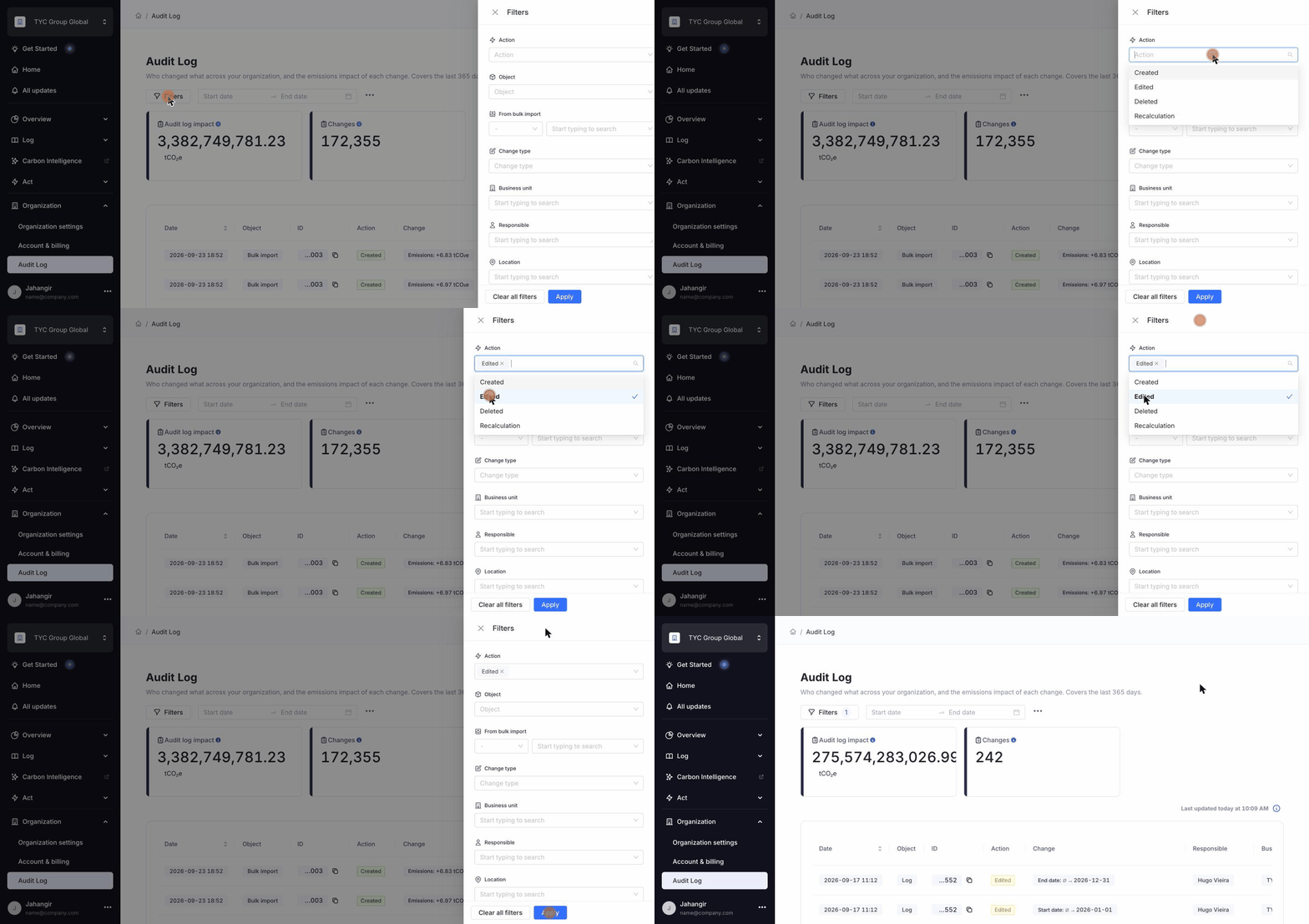
Filtering the feed to show only edits.
To limit the feed to a time period, use the date range picker next to Filters. Pick a start and end date, or use one of the presets: Today, Last 7 days, Last 30 days or Year to date.
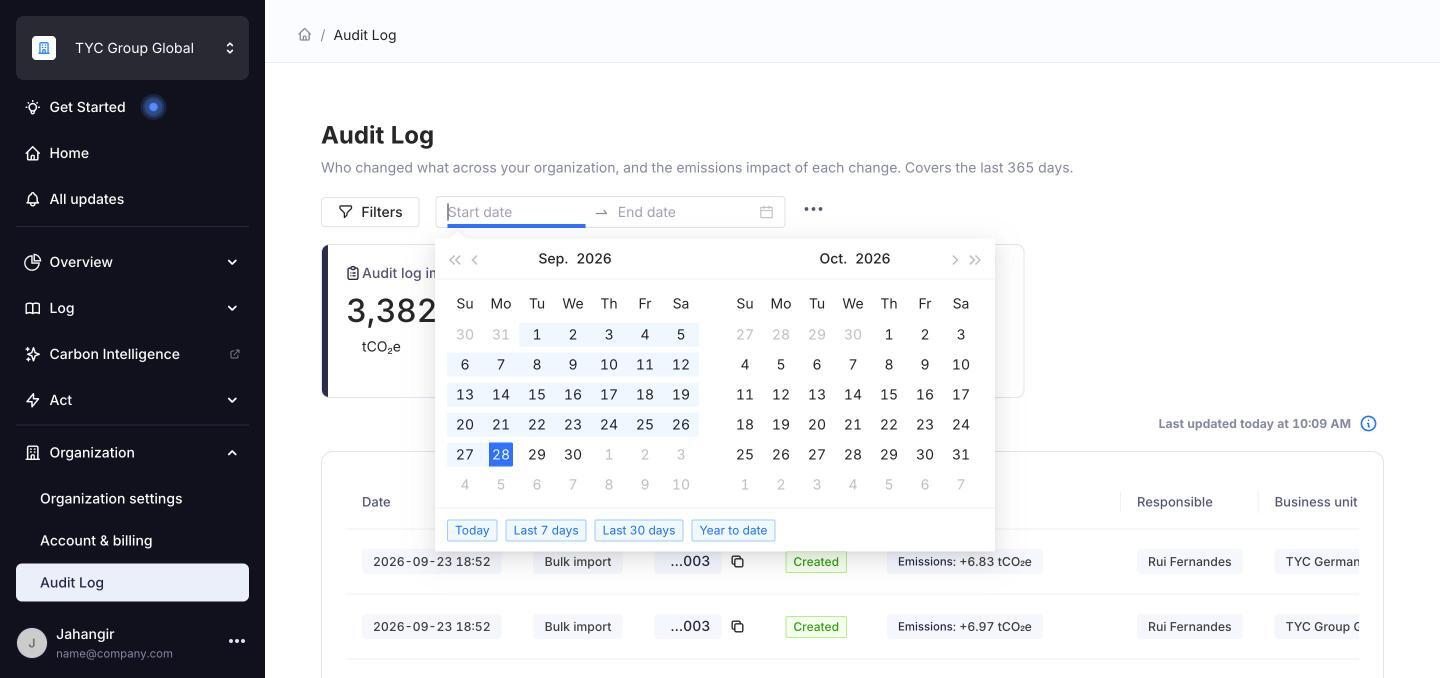
The date range picker and its presets.
6. Export your view
Click the ••• menu next to the date range picker and choose one of these options:
- Export all data to CSV or Export all data to XLSX: everything in the Audit Log, ignoring your filters
- Export current view to CSV or Export current view to XLSX: only what you see on screen, with the same filters, date range and sort order
The export runs in the background. You'll see the message You'll receive an email with a download link, and the file arrives by email. Besides the delta, the export also includes the value before and the value after each change.
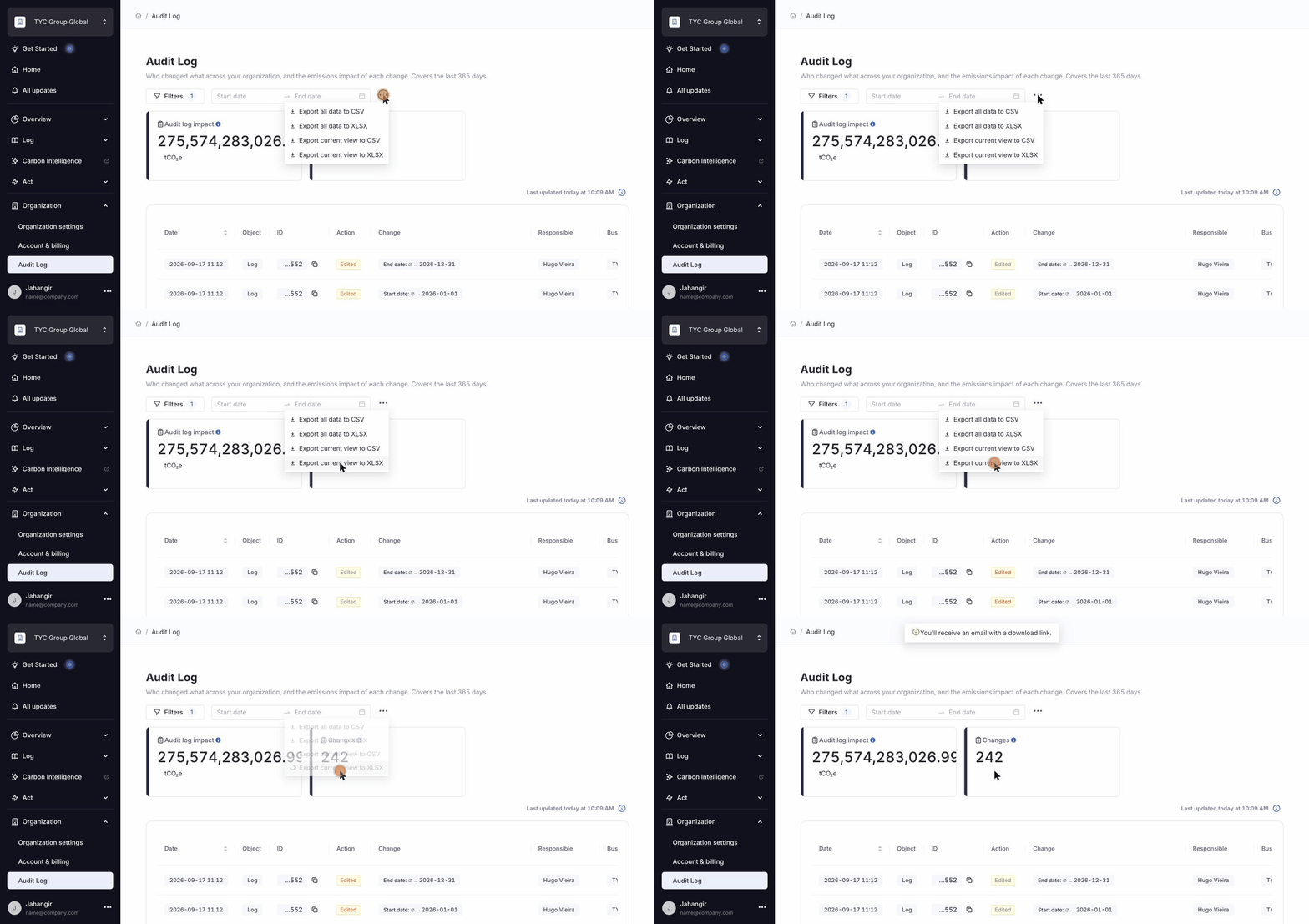
Exporting the current view to XLSX.
7. Check data freshness
The Last updated label above the table shows when the data was last refreshed. The table updates automatically every 2 hours, not in real time, so a change you have just made may take a while to appear. Refresh the page to check whether newer data is available. Because the feed reads settled data, the emissions figures are final rather than provisional.
Frequently asked questions
Does this cover every kind of change to my organisation's data?
No. Audit Log currently records only changes that touch log entries (created, edited, deleted or recalculated). Changes that don't affect a log entry, such as renaming a location, creating a business unit, uploading a file, or updating master data like emission factors, suppliers or tags, are not captured yet. Widening this to a full activity log is planned.
Why doesn't the Audit Log explain a footprint change I didn't make myself?
Emission factor and methodology updates that move a footprint without any user action are not covered here. That is the job of Deviation Analysis, a separate feature coming soon that is designed to complement the Audit Log.
Does it track logins or permission changes?
No. Audit Log is not a security log. Logins, permission changes and settings changes are not recorded.
How current is the data?
The feed refreshes every 2 hours rather than in real time. The Last updated label shows when it last refreshed.
Why is the Audit log impact card empty when I filter by change type?
An emissions change is recorded as its own event, separate from the field edit that caused it. When you filter by change type you only see field edits, so there is no emissions total to show.
Can I see which scopes a change affected?
Not yet. The emissions figure is a single signed tCO₂e number covering all scopes an edit touched, without a scope breakdown in the feed. The export includes the value before, the value after and the delta.
How far back does the history go?
History starts on 1 January 2026, and the page shows changes from the last 365 days. Changes before 1 January 2026 are not available in Audit Log.
Is this available on my account?
Audit Log requires the v2 Calculation Engine and is enabled per organisation by Cozero. It is not a self-serve setting yet. Reach out to your Cozero contact to check eligibility.
Questions or feedback
Contact us at support@cozero.io