
What is the bulk import template?
The bulk import template is the Excel file you use to log many activities in Cozero at once. Each row on the Data input sheet becomes one log entry. The template is built for your organization: its dropdowns list your own Cozero locations, suppliers, customers and products, and its Data guide lists every valid combination for the categories you chose when you downloaded it.
This article explains how to fill in the template correctly, column by column, so it passes validation on the first upload. To upload the finished file through Data ingestion, see New Data Ingestion Experience.
Who is this for?
This guide is for everyone who uses Cozero's Log module to add Corporate Carbon Footprint (CCF) data.
How to request a template
Log › Data ingestion › Upload file › choose your categories › Continue › Download Excel Template. The template arrives by email within 5 minutes. Open it in Microsoft Excel or Google Sheets. The file you upload must be an Excel file (.xlsx).
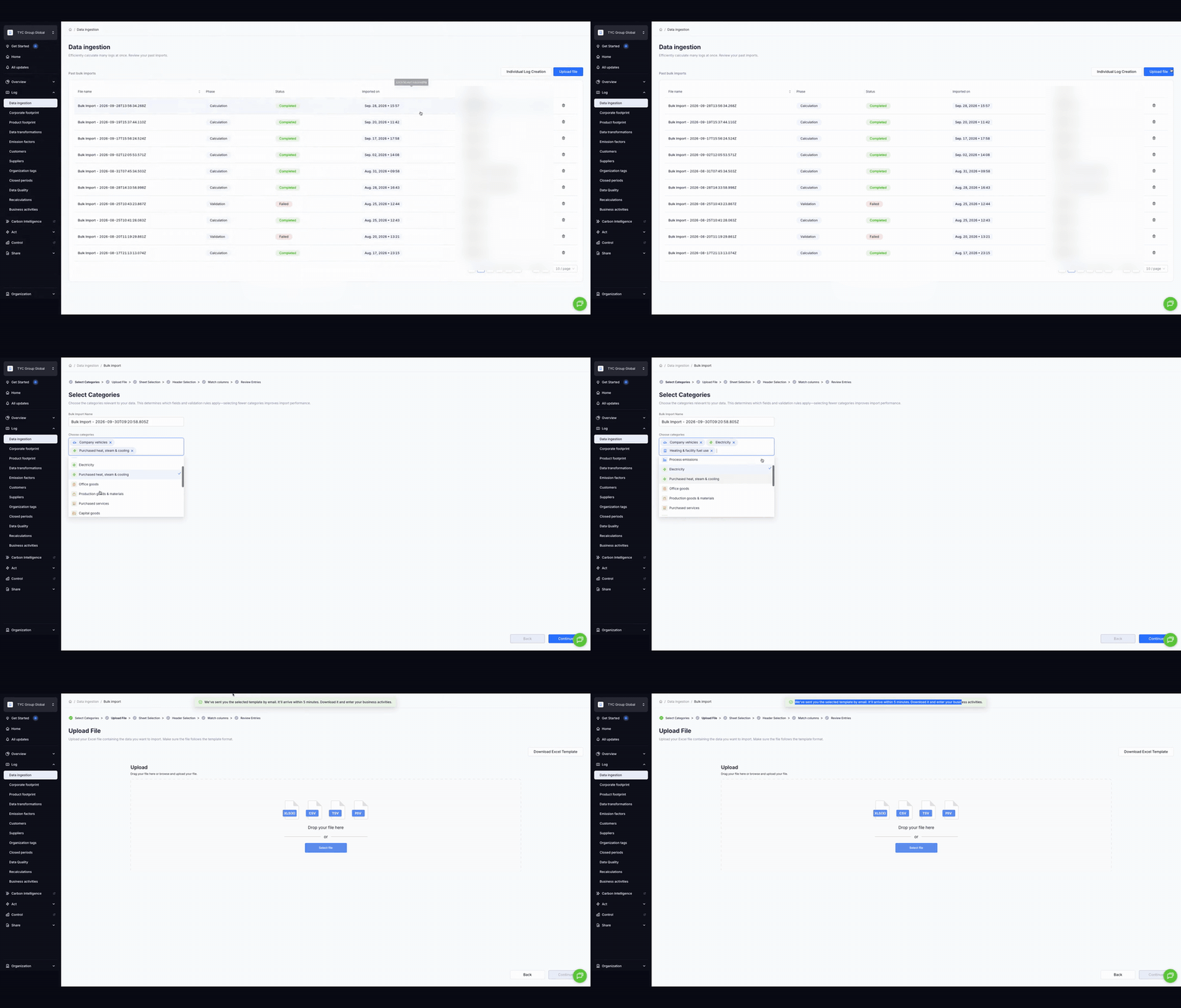
Video walkthrough
Step-by-step guide
Step 1: Get a fresh template for your categories
- In Cozero, go to Log › Data ingestion and click Upload file.
- Under Choose categories, select every category you want to log in this file (for example Company vehicles, Electricity and Heating & facility fuel use). You can give the import a name under Bulk Import Name, or keep the suggested one.
- Click Continue.
- On the Upload File step, click Download Excel Template (top right). You'll see: "We've sent you the selected template by email. It'll arrive within 5 minutes."
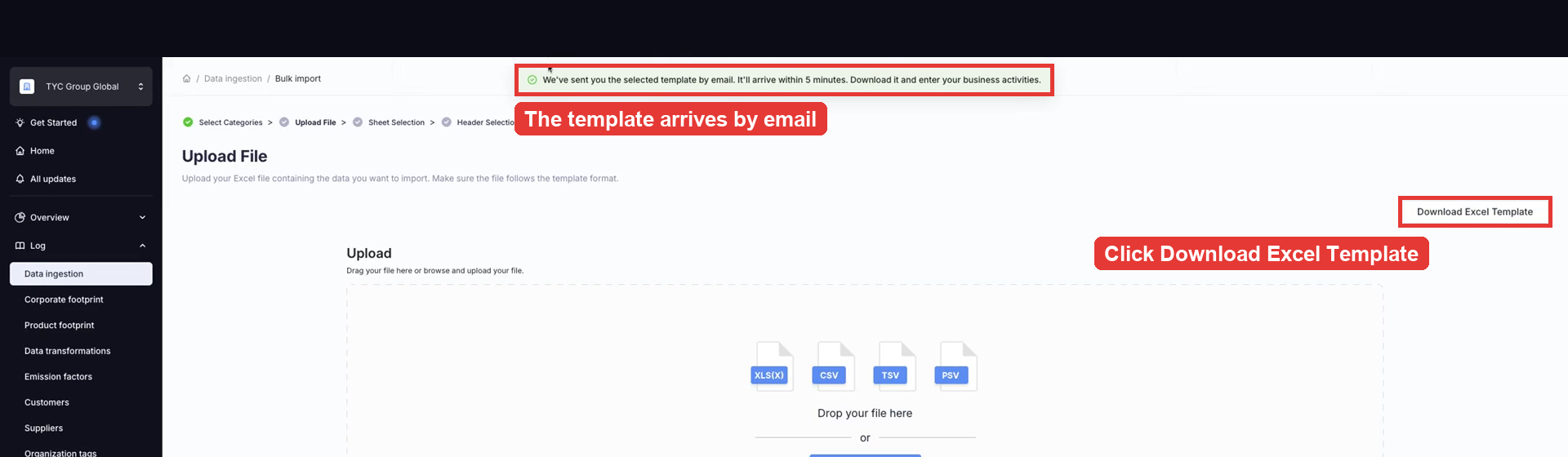
- Open the email, download the file, and open it in Microsoft Excel or Google Sheets. If you work in Google Sheets, download it as an Excel file (File › Download › Microsoft Excel (.xlsx)) before you upload it.
Always start from a freshly downloaded template. The dropdowns and the Data guide reflect your organization's setup and the categories you selected on the day you download it. If you have data in an older file, copy it into a fresh template.
Step 2: Get to know the sheets
- Data input is where you enter your data. Row 1 holds the column headers. Start on row 2, one activity per row.
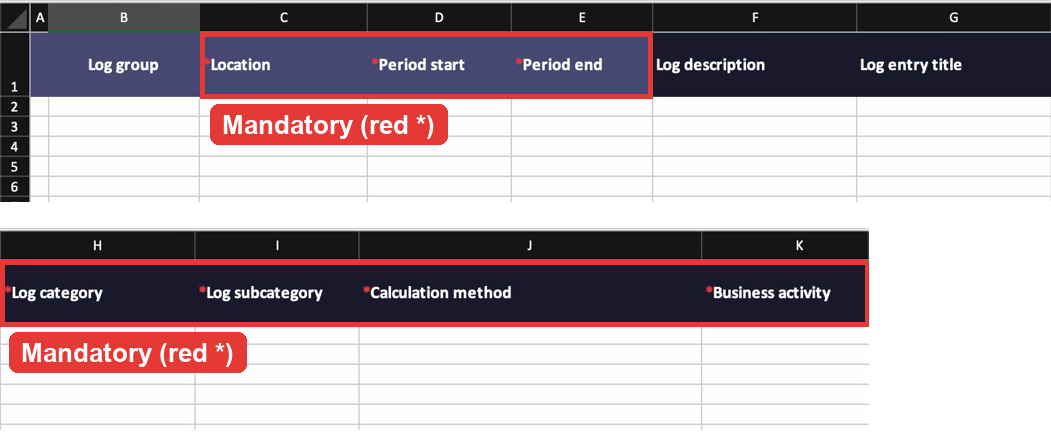
- Data guide explains the template:
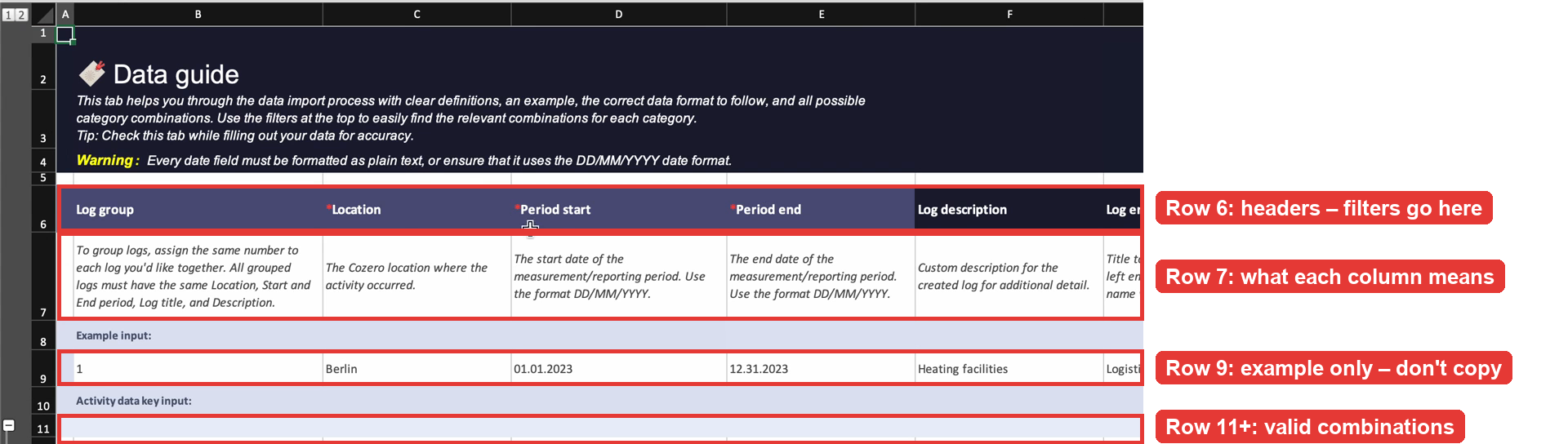
- Row 6 repeats the column headers, and row 7 describes each column.
- Row 9 is an example row that shows the layout. Don't copy values from it: always copy from the combination list below it.
- From row 11, the Activity data key input lists every valid combination of Log category, Log subcategory, Calculation method, Business activity, Type of data and Unit for the categories you chose.
- Columns whose header starts with a red asterisk (*) are mandatory: Location, Period start, Period end, Log category, Log subcategory, Calculation method, Business activity, Data type 1, Unit 1, Value 1.
- Never rename, move or delete columns or sheets. Leave the Business activity mappings sheet as it is.
Step 3: Find your combination in the Data guide
- Open the Data guide sheet, click any cell in row 6, and turn on filters: Data › Filter. (If the Filter button doesn't work in your Excel version, right-click a header cell in row 6, for example K6, and choose Filter › Filter by Cell's value.)
- Filter Log category (column H), then Log subcategory (I), then Calculation method (J).
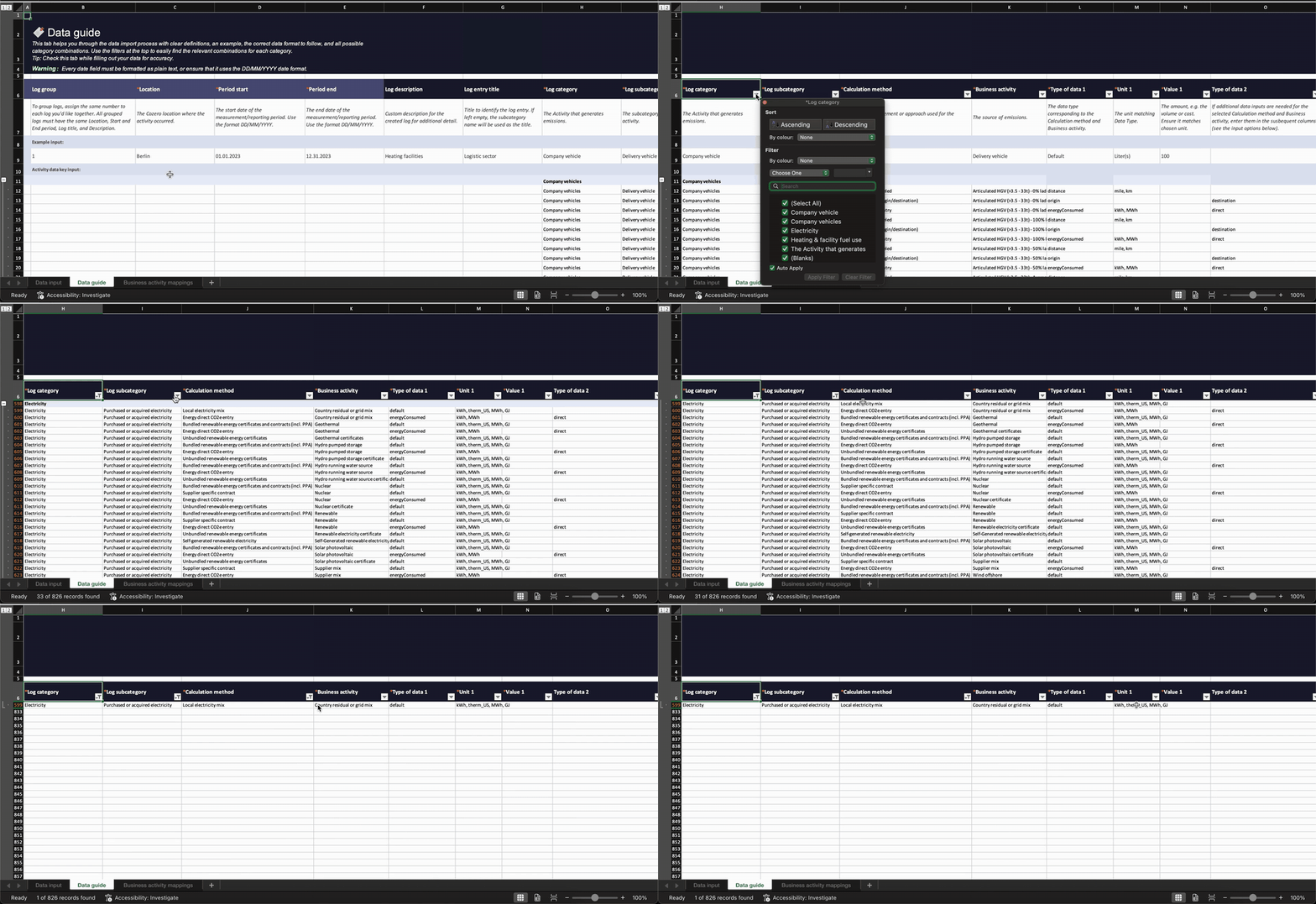
- In Business activity (K), find the row that matches your activity, for example Country residual or grid mix or Natural gas - 100% mineral blend.
- Note the Type of data (L) and Unit (M) of that row. Units are listed as options, for example
kWh, therm_US, MWh, GJ. You'll use one of them. Don't copy the whole unit list.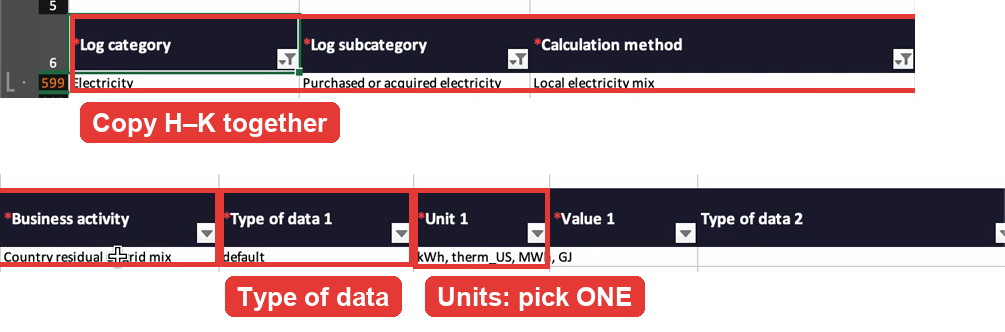
- Copy the values in H to K from that row. Copy and paste them rather than typing them, so the spelling matches exactly.
Step 4: Fill in the mandatory columns on the Data input sheet
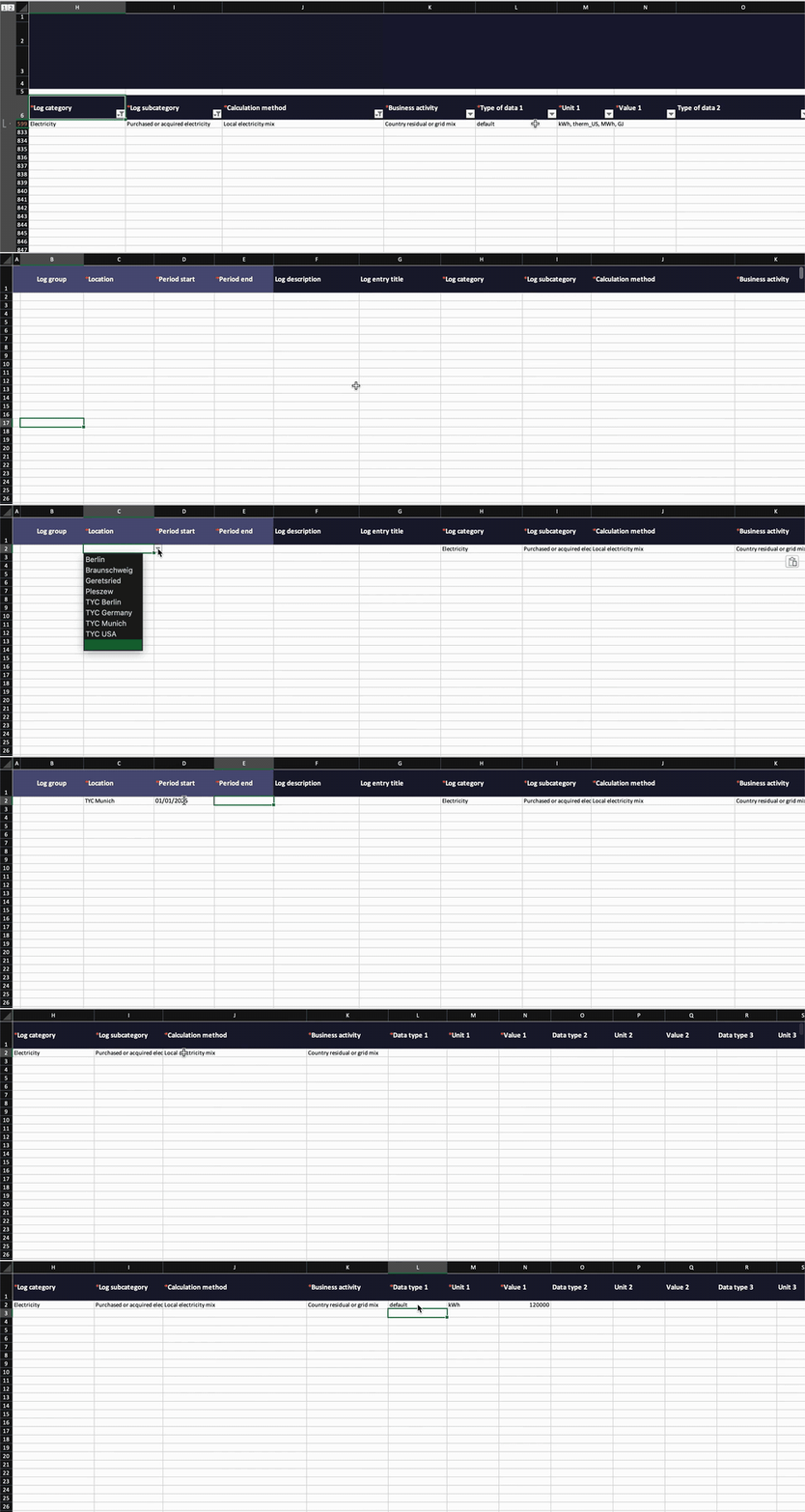
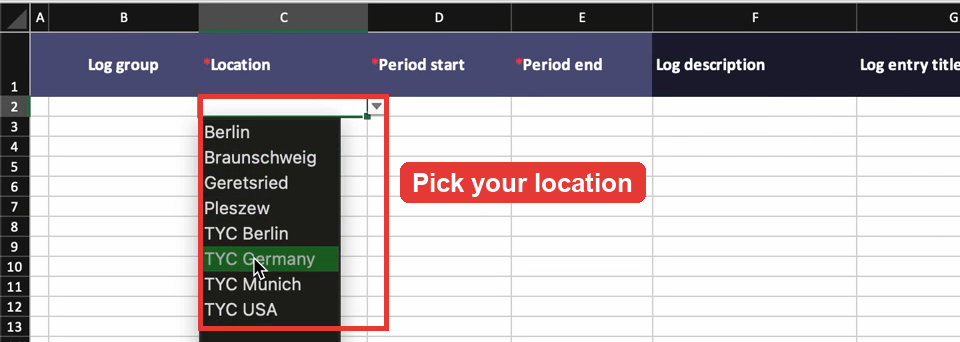
- Location (C): click the cell, open the dropdown arrow next to it, and pick your location. The list shows the locations saved in your Cozero account.
- Period start (D) and Period end (E): first select columns D and E and set them to text (right-click › Format Cells › Number › Text). Then type the dates as DD/MM/YYYY, for example
01/01/2025and31/12/2025. (Alternatively, type an apostrophe before each date:'31/12/2025.)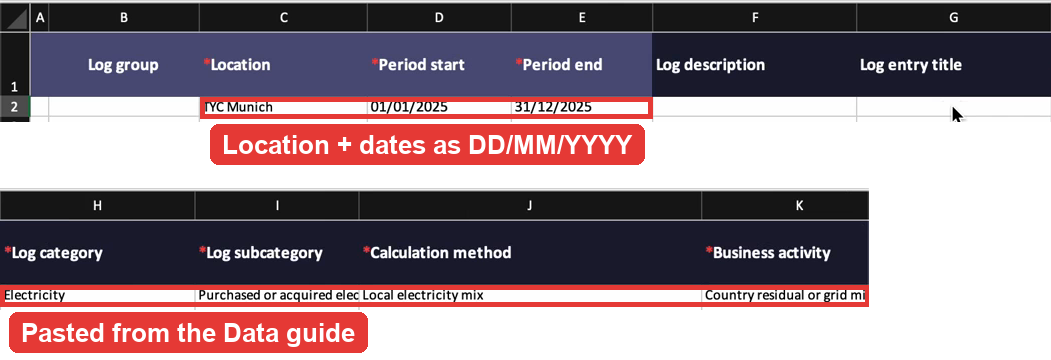
- Log category, Log subcategory, Calculation method, Business activity (H–K): paste the values you copied from the Data guide.
- Data type 1 (L): enter the Type of data from the Data guide exactly as shown, for example
default,spendorenergyConsumed. - Unit 1 (M): enter one unit from the Data guide's list, exactly as shown, for example
kWhorl. Never paste the whole list (kWh, therm_US, MWh, GJ). For spend-based methods, the unit is the currency code, for exampleEUR. - Value 1 (N): enter the amount as a plain number, in that unit. Use a dot as the decimal separator (
1250.5), not a comma, even if your Excel is set to a language such as German.
- If the Data guide shows a second data type for your combination (for example
directwith unitCO2e tonnefor Energy direct CO2e entry), fill in Data type 2, Unit 2 and Value 2 the same way. Use columns O to Z only when the Data guide shows extra inputs.
Step 5: Add optional details where you need them
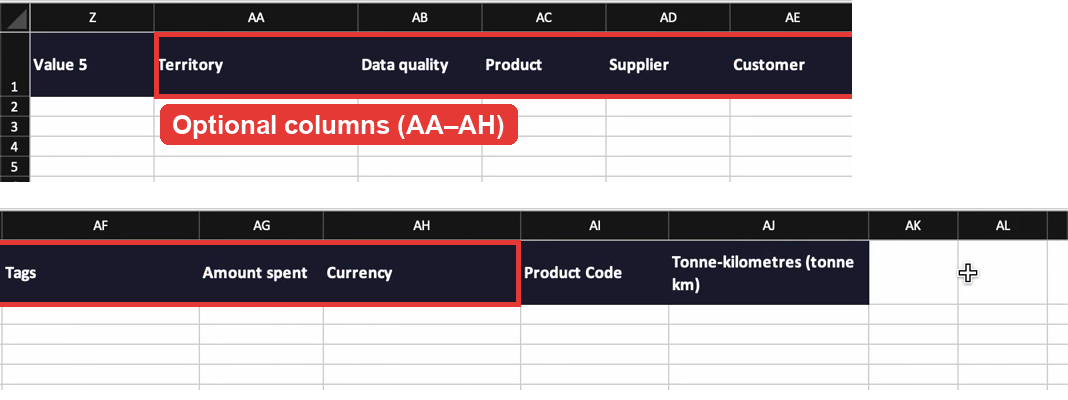
- Log group (B): give rows the same number to group them into one log. Grouped rows must share the same location, period start and end, log entry title and description.
- Log description (F) and Log entry title (G): free text. If you leave the title empty, the subcategory name is used.
- Territory (AA): pick from the dropdown the country or region where the product was produced.
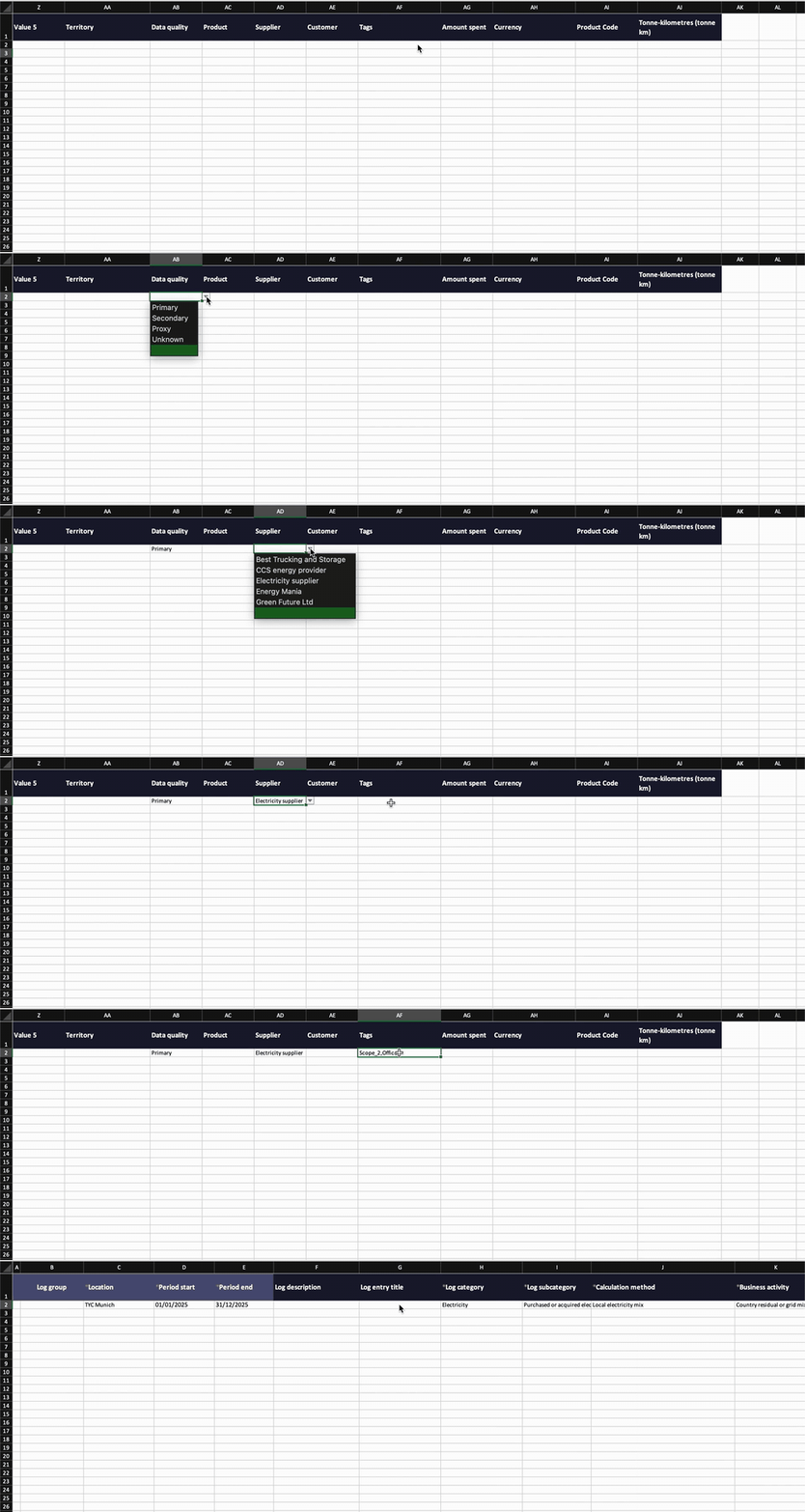
- Data quality (AB): pick Primary, Secondary, Proxy or Unknown from the dropdown.
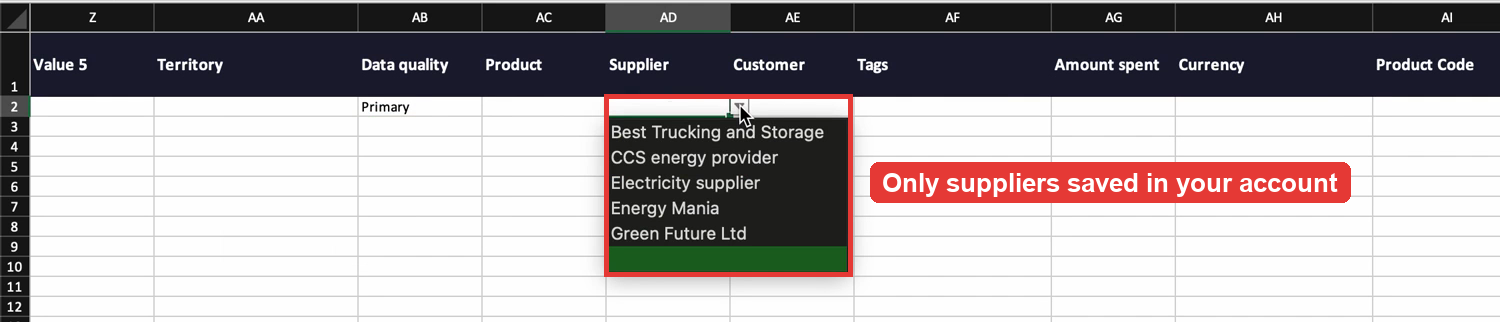
- Product (AC), Supplier (AD), Customer (AE): pick from the dropdown. Only products, suppliers and customers already saved in your Cozero account are listed.
- Tags (AF): this column has no dropdown. Type tags that already exist in your account (see Log › Organization tags in Cozero), separated by commas with no spaces:
tag1,tag2.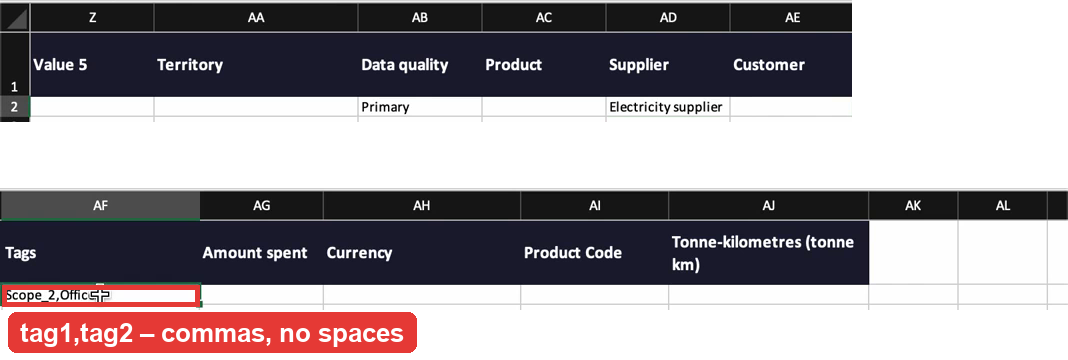
- Amount spent (AG) and Currency (AH): enter the money spent on the activity and pick its currency from the dropdown.
Step 6: Check and save
- Check each row against the Data guide: category, subcategory, calculation method and business activity must appear together in one Data guide row, and the unit must be in that row's unit list.
- Check that every row has all mandatory columns filled. Don't leave rows half-filled.
- Save the file as
.xlsx, keeping the original sheets. In Google Sheets, use File › Download › Microsoft Excel (.xlsx). - Upload it as described in New Data Ingestion Experience.
Understanding account-specific values
Some columns only accept values that exist in your Cozero account: Location, Supplier, Customer, Product and Tags. When you download a template, Cozero fills its dropdowns from your account, so picking from a dropdown guarantees an exact match.
| Column | Where the options come from | How to fill it |
|---|---|---|
| Location (C) | Your organization's locations | Dropdown |
| Supplier (AD) | Log › Suppliers | Dropdown |
| Customer (AE) | Log › Customers | Dropdown |
| Product (AC) | Your organization's products | Dropdown |
| Tags (AF) | Log › Organization tags | Type, comma-separated, no spaces |
| Data quality, Currency | Fixed Cozero lists | Dropdown |
If a location, supplier, customer or tag is missing, create it in Cozero first, then download a fresh template. A name typed by hand that doesn't match exactly (spelling, case or spaces) causes a validation error.
Frequently asked questions
Can I use one template for several categories? Yes. Select all the categories you need before you download. The Data guide then lists the combinations for all of them, and you can mix categories and calculation methods in one file.
Which date format should I use? DD/MM/YYYY, or dates formatted as plain text. Set the date columns to Text before you type. Otherwise Excel may convert the dates using your computer's regional settings: on some computers, 05/03/2025 becomes 3 May instead of 5 March, and 31/12/2025 stays as text while 01/01/2025 becomes a date.
Why doesn't my business activity pass validation, even though it looks right? The combination of category, subcategory, calculation method and business activity must appear together in one row of the Data guide. A business activity that exists for one calculation method may not exist for another. Filter the Data guide by all three columns first, then copy the business activity from the rows that remain.
The name I need isn't in the dropdown. What do I do? Dropdowns only list what was saved in your Cozero account when you downloaded the template. Add the location, supplier or customer in Cozero, then download a new template.
How do I enter more than one tag? Separate the tags with commas and no spaces, for example Scope_2,Offices.
How many rows can one file have? Up to 10,000 rows per bulk import file.
Questions or Feedback
Contact us at support@cozero.io