
The article covers Cozero's new data ingestion tool for Corporate Carbon Footprint imports. It replaces the previous Excel-based bulk import workflow with an in-app guided experience that validates your data upfront, lets you fix errors directly in the platform, and removes the need to repeatedly download, edit, and re-upload files.
Overview
The previous bulk import process required downloading a template, filling it in, uploading it, receiving error notifications, downloading the error report, fixing issues in the file, and uploading again. For customers with large or complex datasets, this cycle could repeat multiple times before a clean submission.
The new process changes this by guiding you through the entire import process inside the platform. When issues are found in your data, you can correct them directly in the app using inline editing, bulk copy-paste, or find-and-replace. You only leave Cozero once the import is complete.
Before You Start
A few things to keep in mind before uploading your file:
- File format: Excel (.xlsx) is supported. Google Sheets is not supported. If your data is in Google Sheets, export it as an .xlsx file before uploading.
- Date format: Dates must follow the DD/MM/YYYY format. Make sure your file uses this format before uploading to avoid validation errors.
- Language and number formatting: Column names and values should be in English. If your Excel application is set to a non-English locale (for example, German), number formatting using commas as decimal separators may cause issues. Use a dot as the decimal separator.
- Template: Please always make sure you are using cozero template to upload the data. Other files will cause issues during the upload process.
- Categories: You can upload data for one or more emissions categories in a single file. For best performance, we recommend keeping the number of categories per file to a minimum (Update with an example).
Video Walkthrough:
Step by Step: Importing Data to the platform
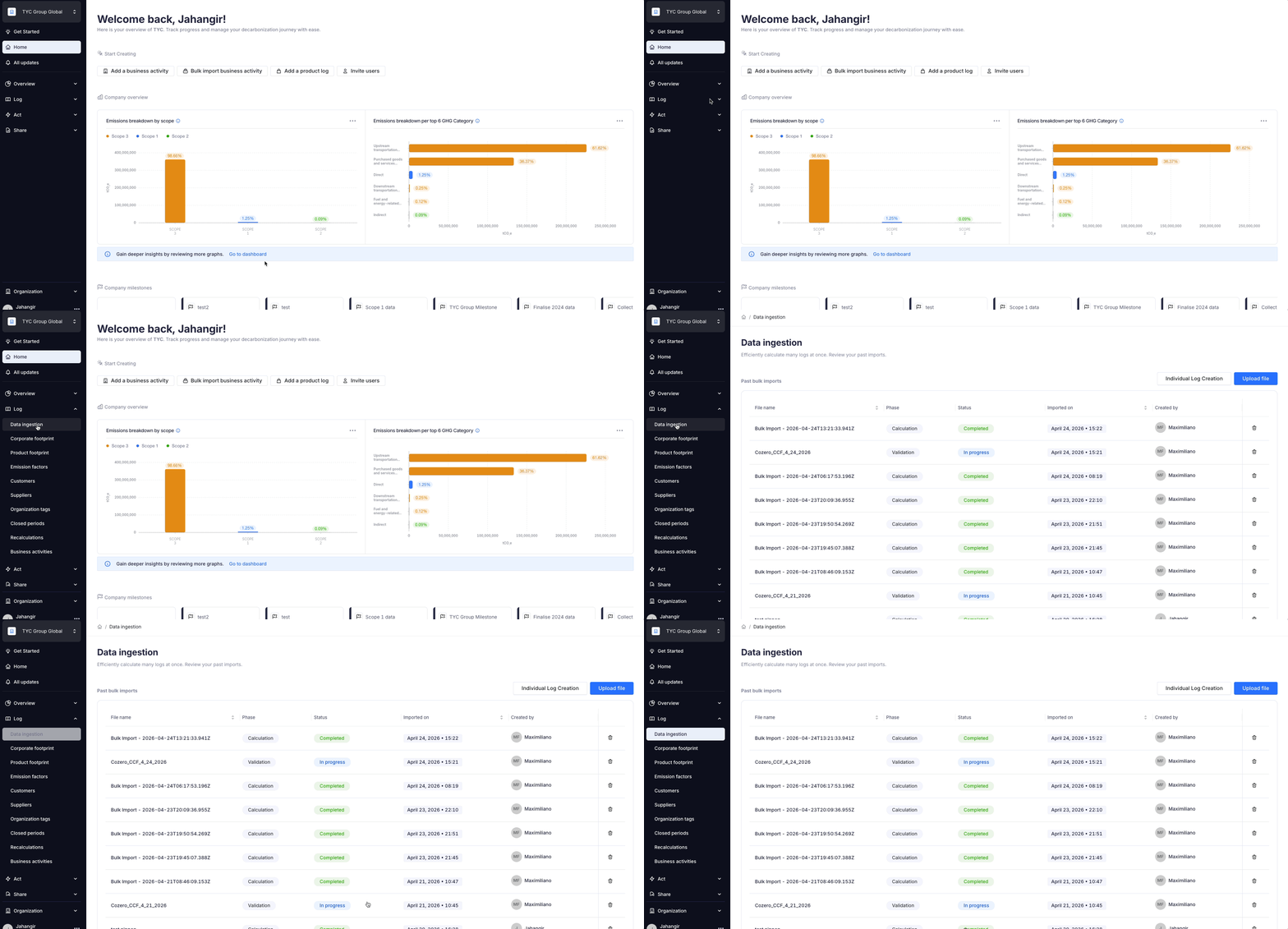
Step 1: Navigate to Data Ingestion
Log into Cozero and navigate to the Data Ingestion tab in the main navigation. This tab provides an overview of all past imports and is where you start a new upload. If you do not see this tab, reach out to support@cozero.io to confirm whether the new data ingestion experience has been enabled for your organisation.
Step 2: Start a New Import
Click Upload File to begin. You will be asked to:
- Name your import: Give the file a recognisable name so you can identify it in your import history later.
- Select the emissions category or categories: Choose the category or categories that apply to the data in your file. You can select more than one, though we recommend uploading fewer categories per file for the best experience.
Once you have completed these fields, upload your file.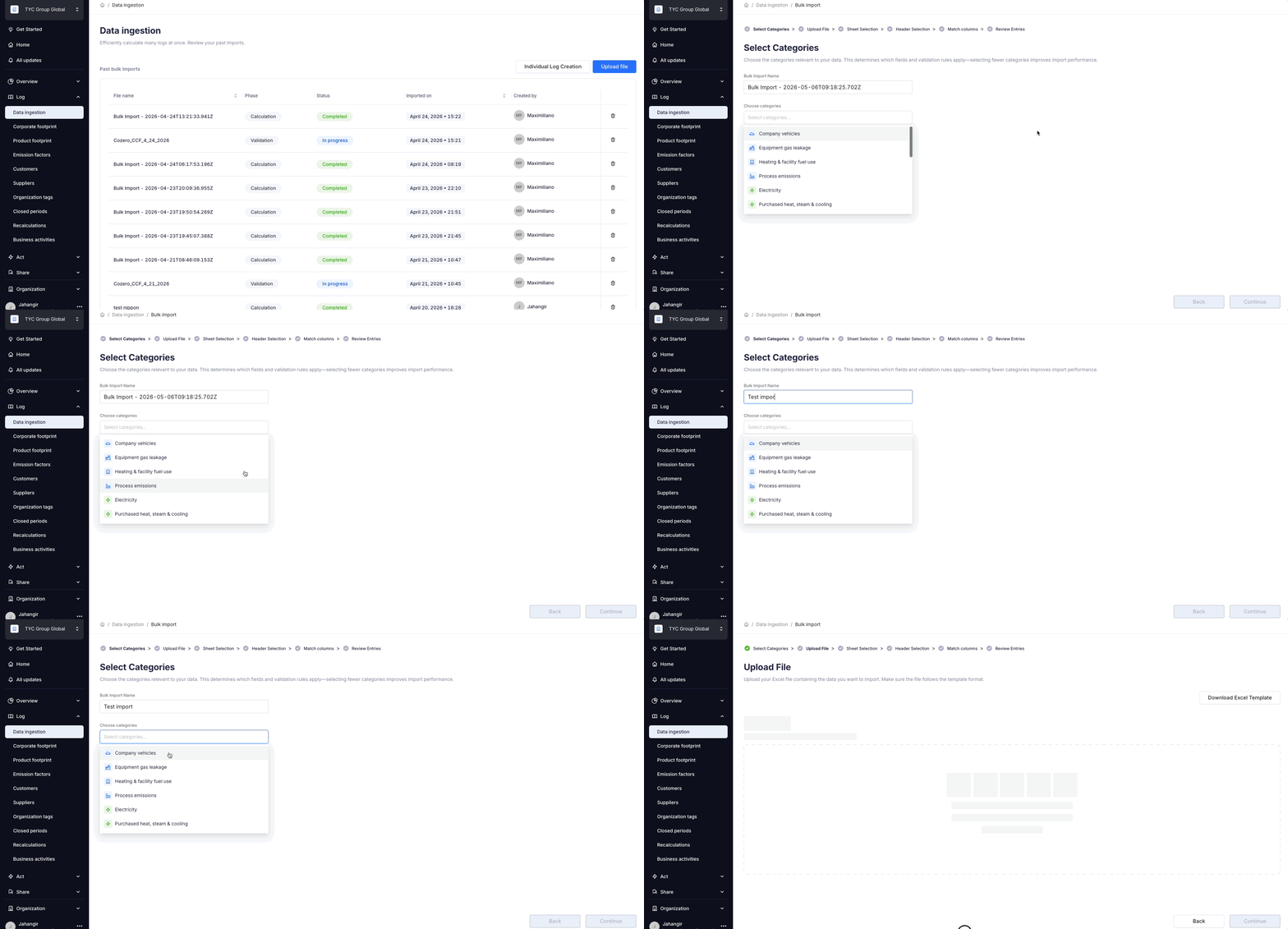
Step 3: Download the Template (if needed)
If you do not already have your data in a file, you can download the Cozero template directly from this step. The template is a simplified version of the standard bulk import file and includes a data guide to help you fill it in correctly.
You can also download last year's logs, edit them, and re-upload them through the data ingestion tab . This can save time if you are repeating a similar dataset from a previous reporting period.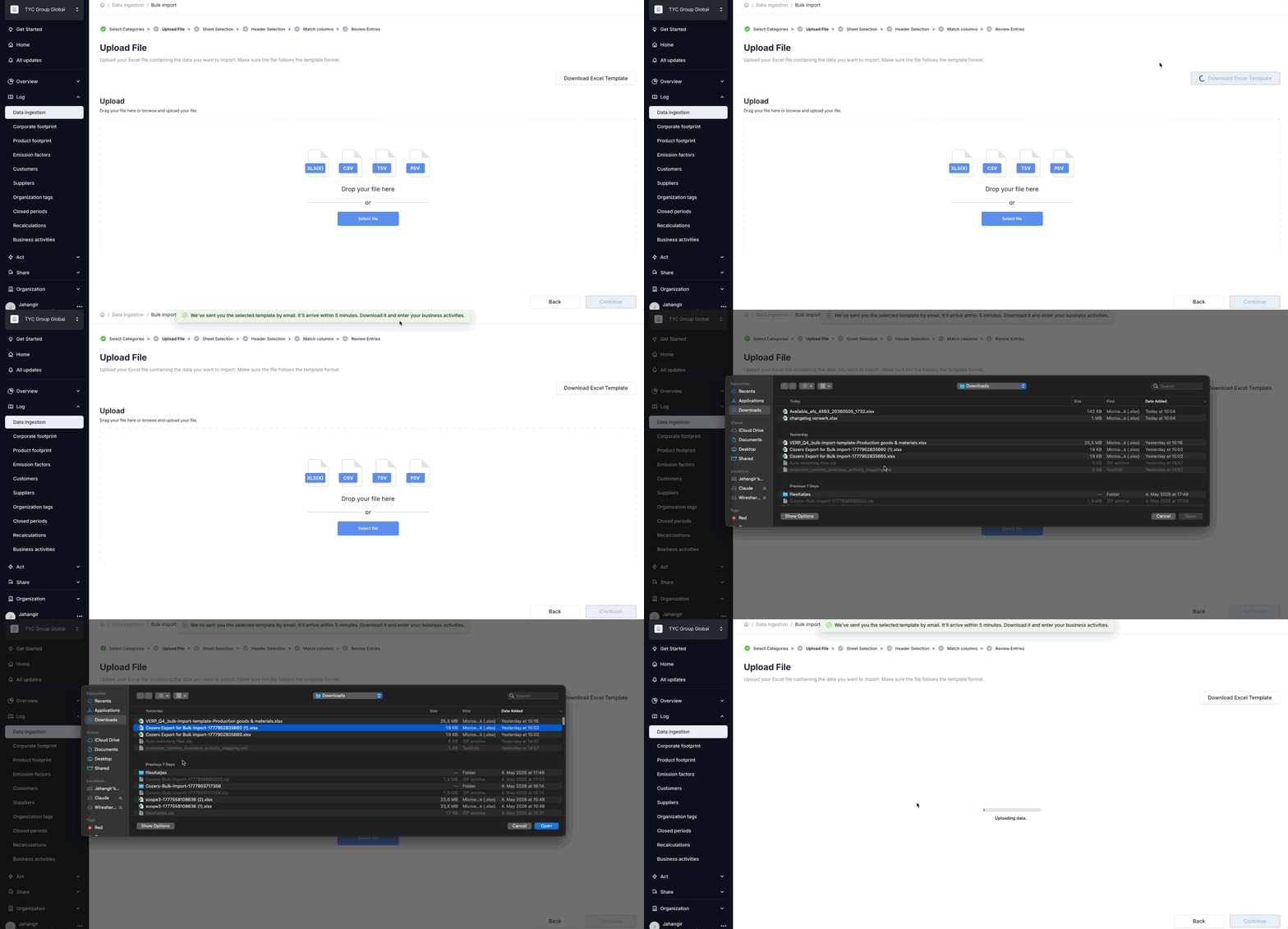
Step 4: Sheet and Header Selection
If your file contains multiple sheets, you will be asked to select the sheet that contains your data. If you are using the standard Cozero bulk import template, the system will detect it automatically and skip this step.
Next, confirm which row contains your column headers. Again, if you are using the standard template, this step is handled automatically.
Step 5: Column Mapping
This is where we match the columns in your file to the fields Cozero expects. The platform will suggest mappings automatically based on your column names, even if there are minor variations.
Review the suggested mappings and adjust any that are incorrect. At this stage you can also map values for fields like business activity in bulk, which can save you from having to fix them individually in the next step.
If you are uploading a raw data file that does not follow the Cozero template structure, we recommend aligning your column headings to the template names before uploading. This will make the mapping step significantly faster.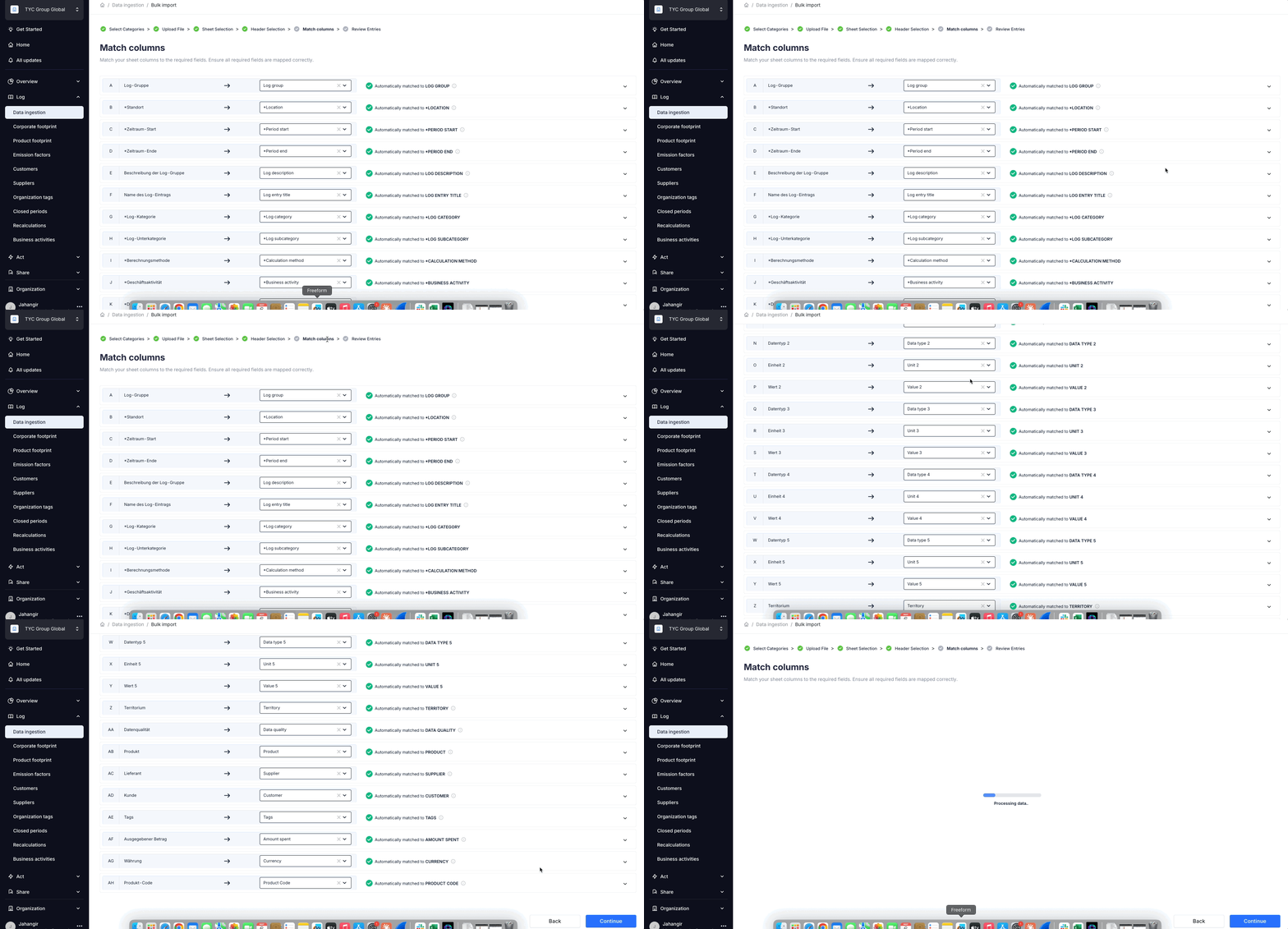
Step 6: Review and Fix Errors
Once column mapping is complete, Cozero runs a validation check on your data and flags any rows that contain errors. You will see a table of your data with errors clearly marked.
You can fix errors directly in this view:
- Click on any cell to edit it inline
- Use the filter to show only rows with errors, making it easier to work through them
- Use Ctrl+C / Ctrl+V (or Cmd+C / Cmd+V on Mac) to copy a correct value and paste it across multiple rows at once
- Use the find and replace function to make bulk corrections across a column
Once you have resolved the errors, you can proceed to submit. If you need to leave the platform before finishing, note that progress is not saved if you exit before submitting. A browser warning will appear to remind you before you navigate away.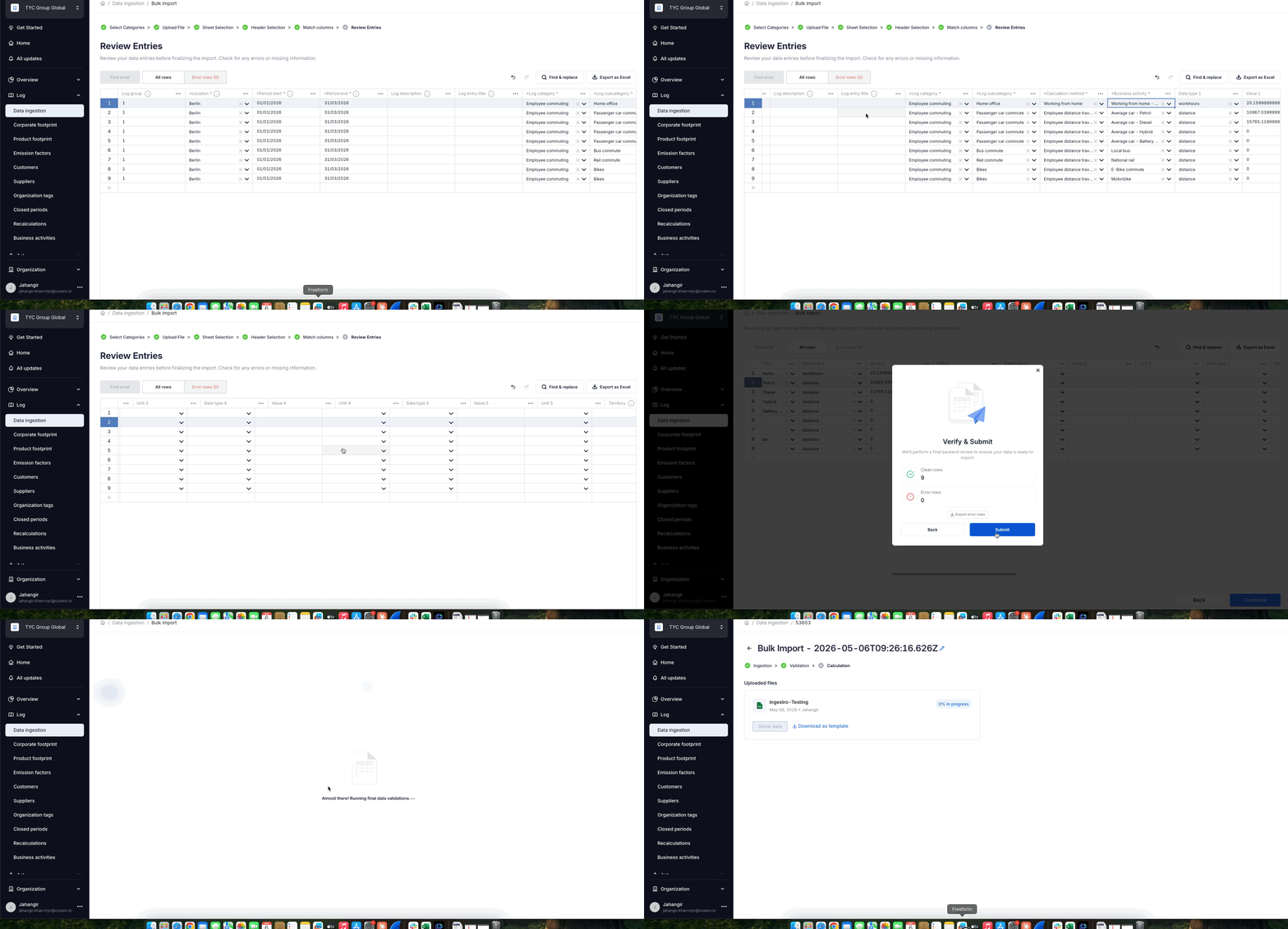
Step 7: Submit Your Import
When all errors have been resolved, click Submit to send your data for processing. The platform will run a final round of backend validation before completing the import.
If the backend validation finds additional issues (for example, a closed reporting period or an address that could not be verified), you will be returned to the error review screen with the new errors highlighted. Fix these in the same way as the previous step and resubmit.
You will receive a confirmation email once your import has been processed successfully.
Step 8: View Your Import History
Once submitted, your import appears in the Data Ingestion tab under your past imports. You can track the status of your import here. After an import is complete, you cannot re-open it in the ingestion flow, but the record remains visible in your history.
Known Limitations
- Ecotransit World (ETW) uploads are not currently supported through the new data ingestion experience and follow a separate workflow. Contact support@cozero.io if you need to upload ETW data.
- Emission factors cannot be uploaded through this tool.
- If your Excel application locale is set to German and your file uses English formatting, validations may not function correctly. We recommend ensuring your file and locale settings are consistent before uploading.
FAQs
Can I use my existing bulk import template? Yes. The system detects the standard Cozero bulk import template automatically and adjusts the flow accordingly, skipping the sheet and header selection steps.
What happens if I close the browser mid-way through? Your progress is not saved if you exit before clicking Submit. The platform will show a warning if you try to navigate away. If this happens, you will need to start the import again from the beginning.
I submitted my file but received an error after submission. What do I do? Some validations, such as address checks or closed reporting periods, can only be confirmed on the backend after submission. If errors are found at this stage, you will be returned to the review screen with the new errors marked. Fix them and resubmit as normal.
Can I download my file after the import is complete? Yes. From your import history, you can download the file associated with a completed import. Note that the downloaded file reflects the transformed version of your data as processed by Cozero.
I do not see the Data Ingestion tab in my account. The new data ingestion experience may not yet be enabled for your organisation. Reach out to support@cozero.io and we can confirm your setup.
What is the maximum number of rows I can upload? Cozero supports imports of up to 10,000 rows per file.
Questions or Feedback?
If you run into any issues during your import or have questions about the process, contact us at support@cozero.io. We are here to help make your data submission as smooth as possible